2.44.0
General
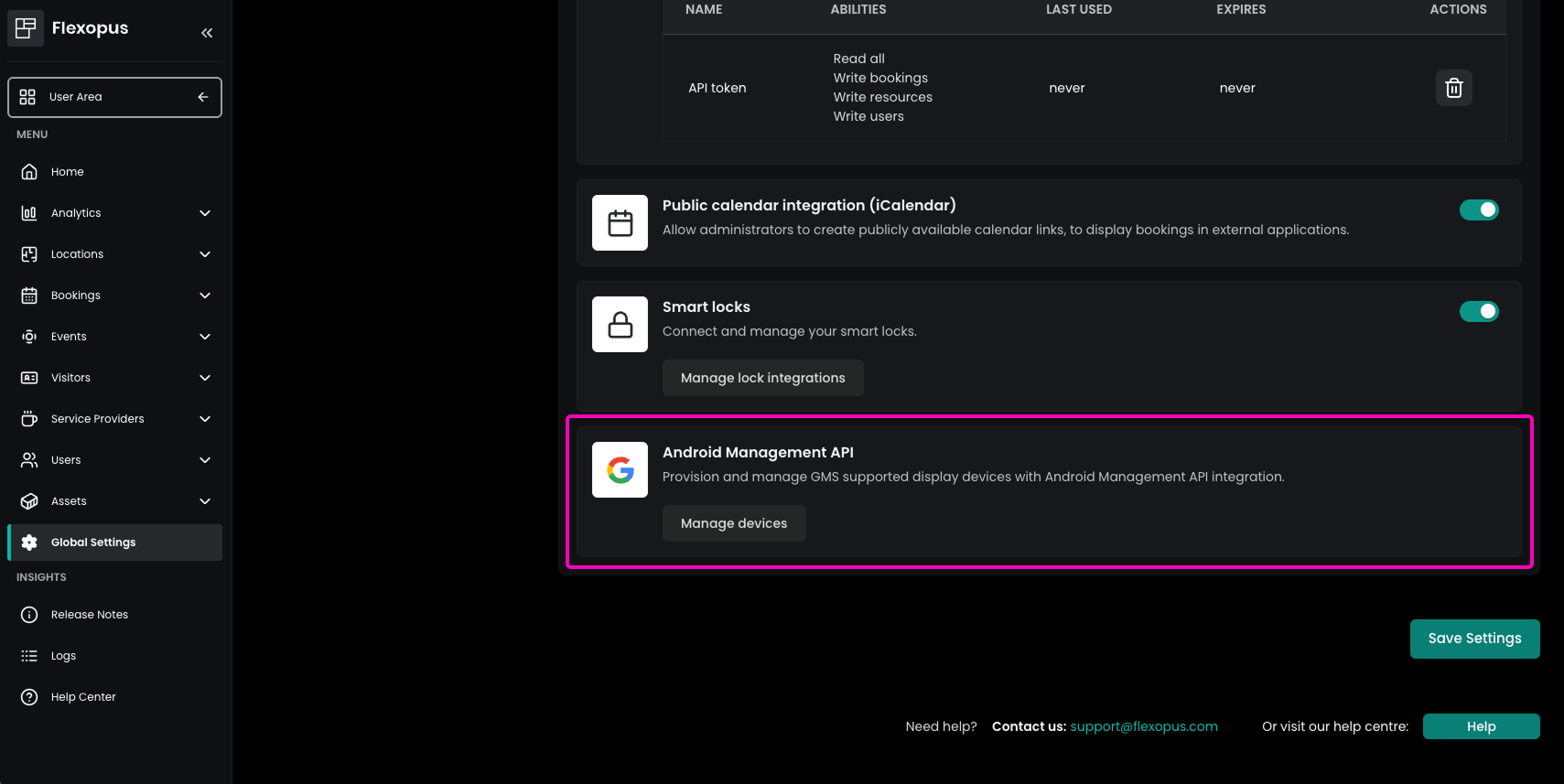
Added Android Management API Integration
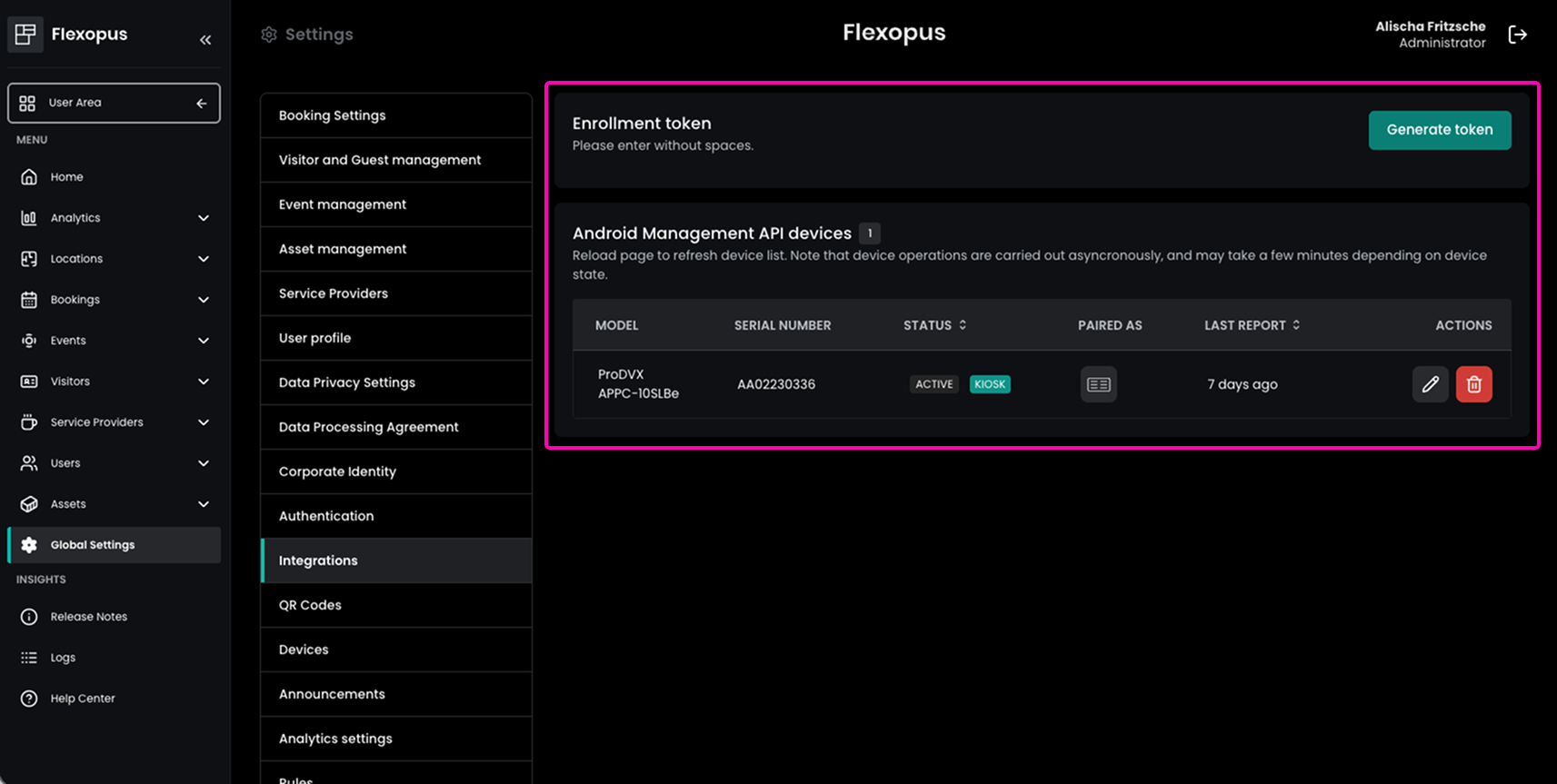
Flexopus now supports provisioning and managing GMS-enabled display devices via the Android Management API.
This integration allows administrators to efficiently deploy and manage their display devices using the Device Connect App.
The feature can be configured in the Admin Area under Global Settings → Integrations → Android Management API.
Improved Administrators Can Set User Language
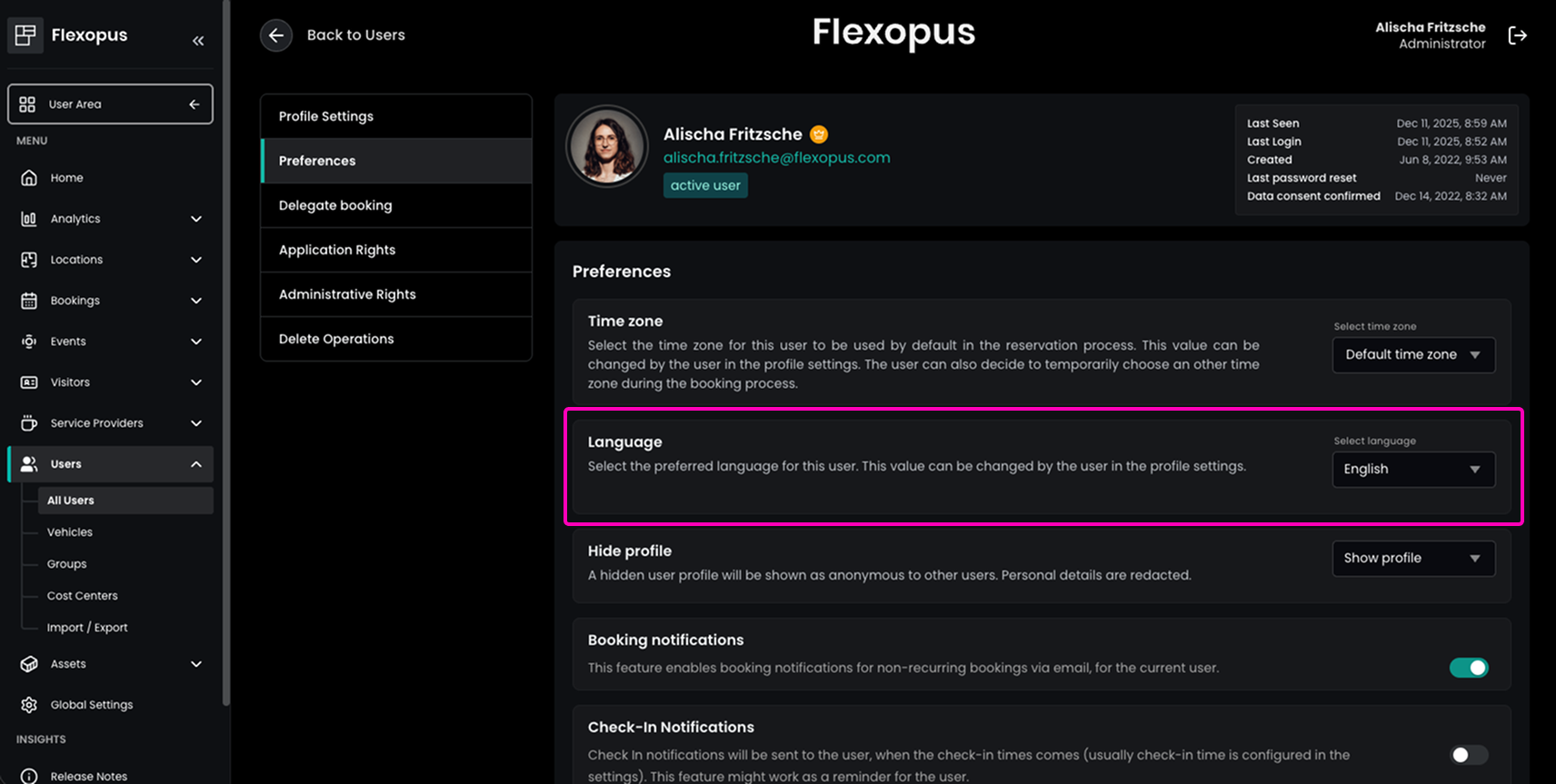
Administrators can now define a user’s preferred language directly in the Admin Area. This allows, for example, administrators to preconfigure the language for new employees in multinational teams so that they immediately see the interface in their preferred language.
This option is available in the Admin Area under Users → All Users, by selecting the desired user and opening the Preferences tab.
Users can override this setting later in their personal profile settings.
Flexopus Workplace
Improved User Avatars in Live Plan
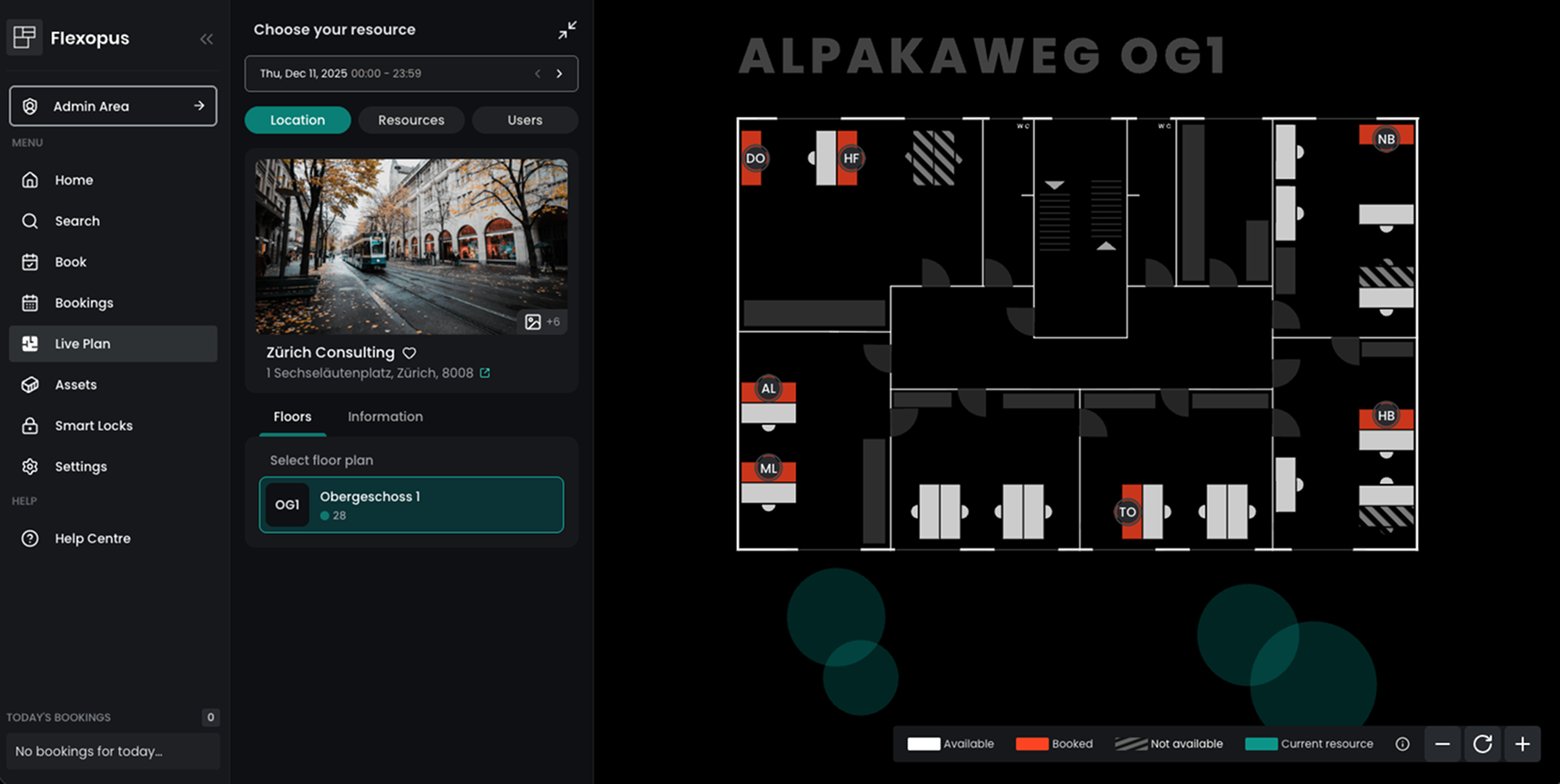
User avatars are now displayed on floor plans during the booking process and on the Live Plan. Avatars become visible once the zoom level is sufficiently high for profile images to be shown clearly. This helps users quickly identify where colleagues are seated, making it easier to coordinate in-person collaboration and find colleagues directly on the floor plan.
If administrators want to disable this feature, it can be turned off in the Admin Area under Global Settings → Booking Settings → Live Plan → User avatar overlay.
Added Participant Information for Events
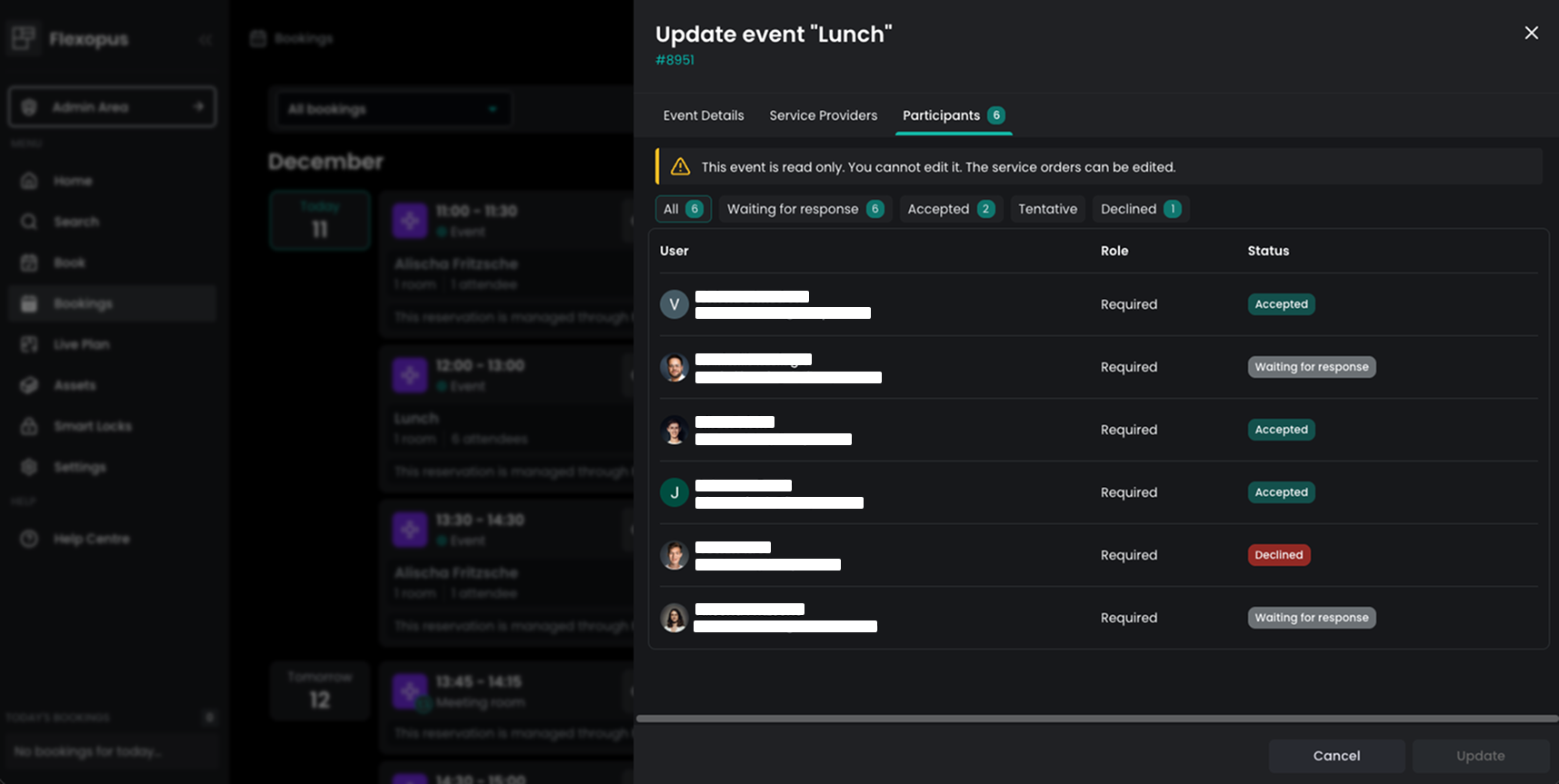
A new Participants tab is now available for events in the user area. This tab provides a tabular overview of all event participants, including their response status — whether a response is still pending, the invitation has been accepted, or the participant has responded as tentative or declined. This gives users a clear and centralized overview of participant statuses directly within Flexopus.
Improved Favorite Users Limit
Users can now mark up to 50 colleagues as favorites. Favorite users are displayed in the Presence List under Live Plan in the user area, allowing users to see the presence of even more preferred colleagues at once.
Added Service Order Statistics
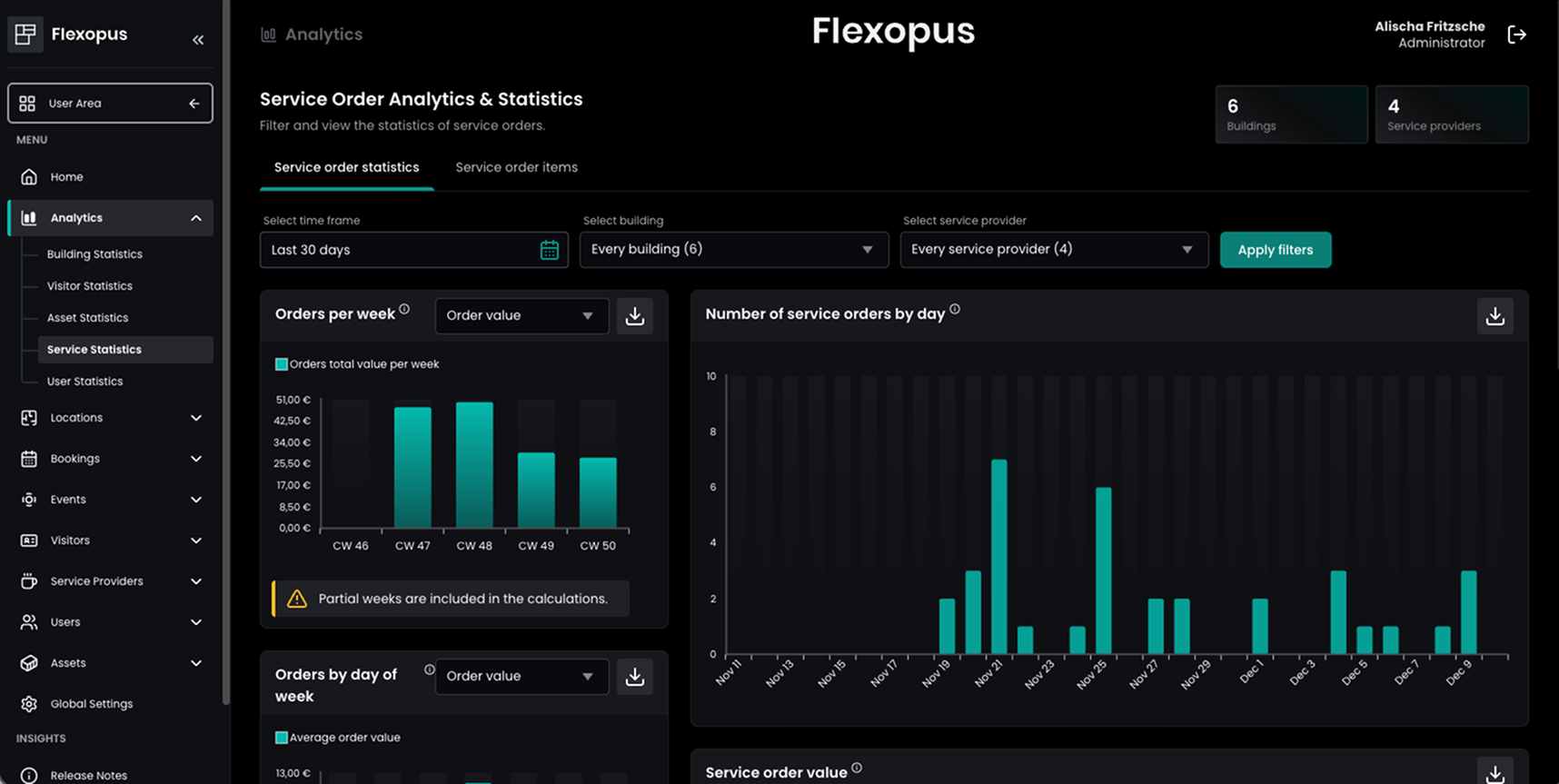
A new statistics dashboard for service orders is now available in the Admin Area under Analytics → Service Statistics. Administrators can view e.g. how many orders have been placed, the total value of these orders, and the distribution across cost centers (if enabled). Additionally, the dashboard shows which items are most frequently ordered by each service provider, giving a clear overview of service usage trends.
Added Service Provider Kiosk
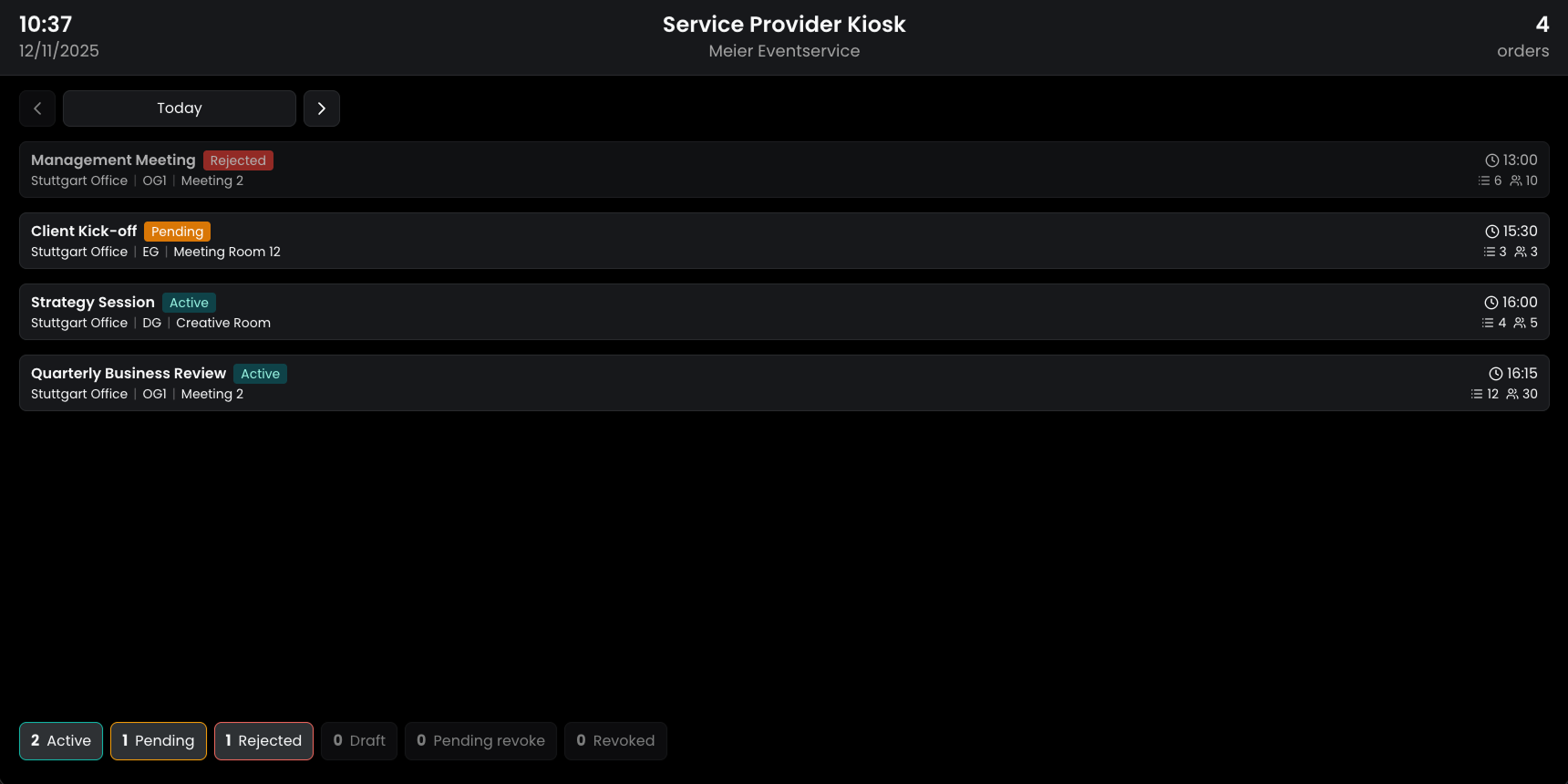
A new device type has been introduced that allows service providers, such as kitchen staff, caterers, or maintenance teams, to view all orders assigned to them in a read-only format. This provides a clear overview of their tasks, helping service providers stay organized and up to date with all assigned orders.
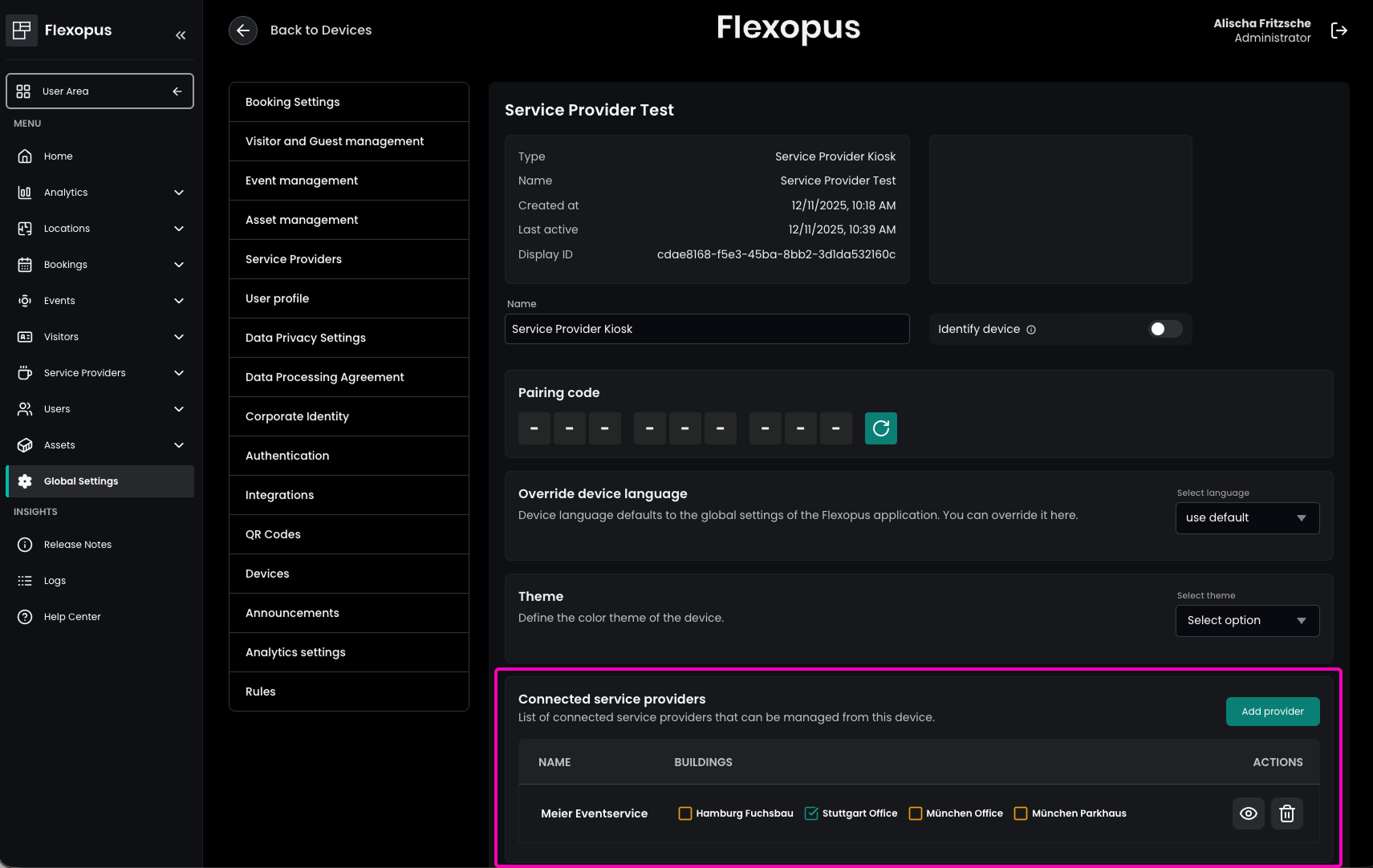
The Service Provider Kiosk can be created in the Admin Area under Global Settings → Devices using the Create device button.
After the device has been created, administrators can, in addition to standard device settings, configure connected service providers and specify — via a checkbox — whether orders from all associated buildings or only selected ones should be displayed.

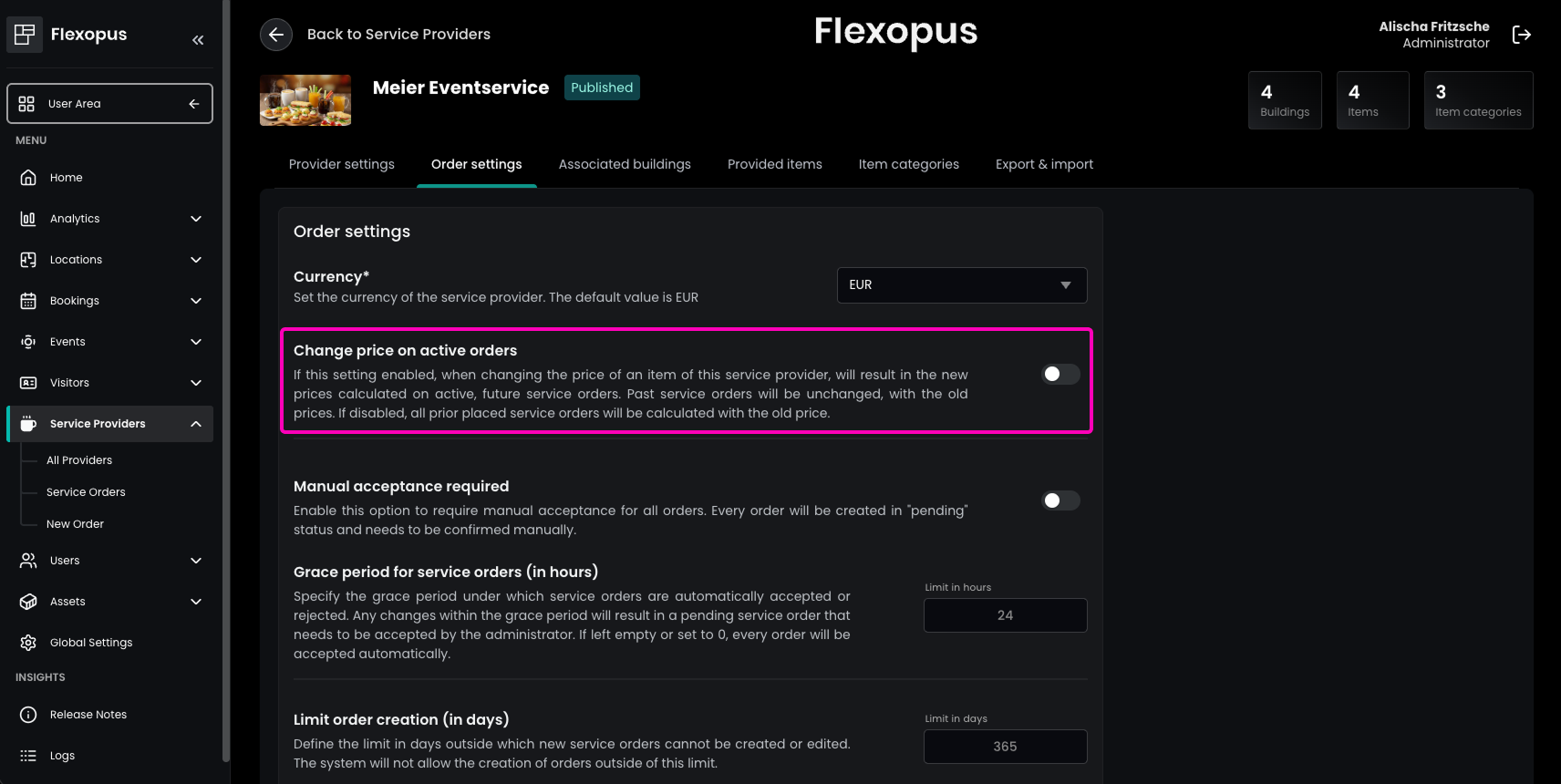
Improved Price Changes for Active Service Orders
It is now possible to define whether price changes to items should affect existing and still active orders.
The configuration can be found in the Admin Area under Service Providers → All Providers, by selecting the provider and navigating to Order settings → Change price on active orders.
This option is disabled by default.
Improved Currency Selection per Service Provider
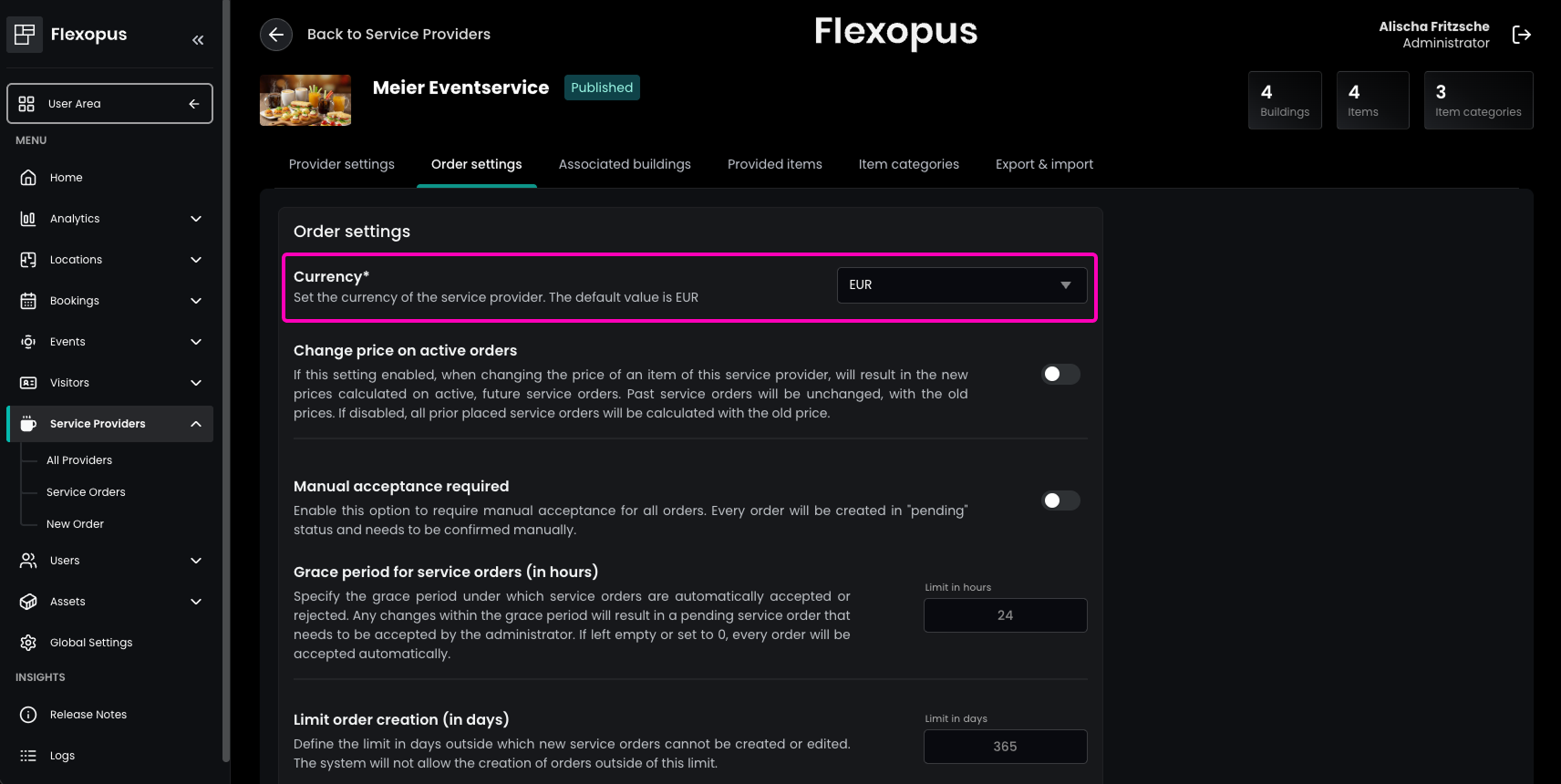
Each service provider can now be assigned a specific currency for its item prices.
The setting Currency is available in the Admin Area under Service Providers → All Providers, by selecting the provider and navigating to Order settings. The default value is EUR.
Improved Number of Participants Requirement
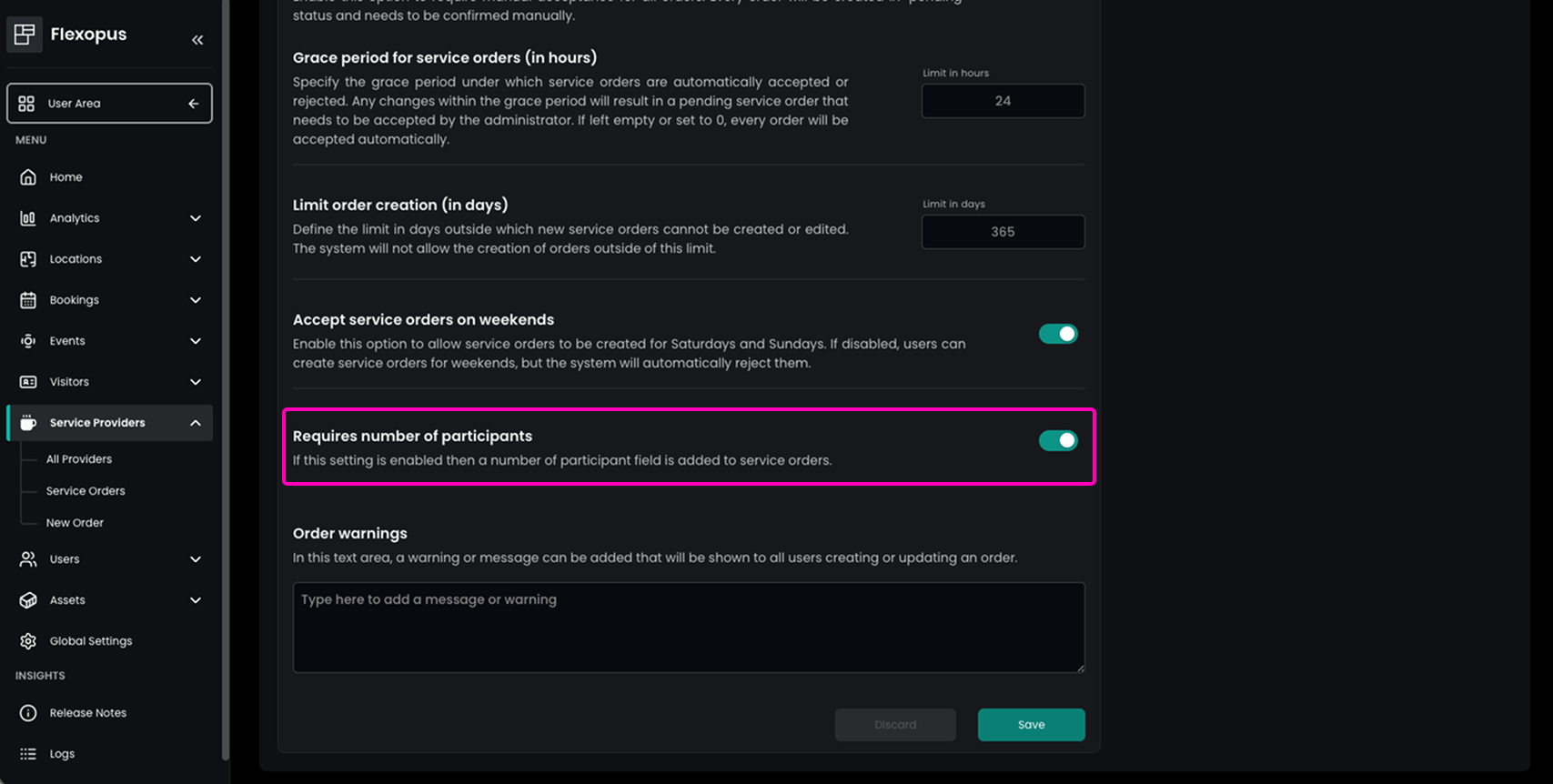
Administrators can now enable or disable whether entering the number of participants is mandatory when creating a service order.
This option (Requires number of participants) is located in the Admin Area under Service Providers → All Providers, by selecting the provider and navigating to Order settings. The setting is enabled by default.
Improved Item Details Accessible During Ordering
When users create an order, they can now view detailed information for each item — such as descriptions, quantity limits, or related notes — directly in the ordering interface.

Flexopus Visitor
Added Visitor Invitations Daily Overview Export
Under Visitors → Visitor Invitations, administrators can now export the Daily overview. The exported file contains all scheduled visitor invitation for the selected day and can be printed for e.g. reception desks or further processed as XLSX or CSV, enabling efficient check-in handling and internal coordination.

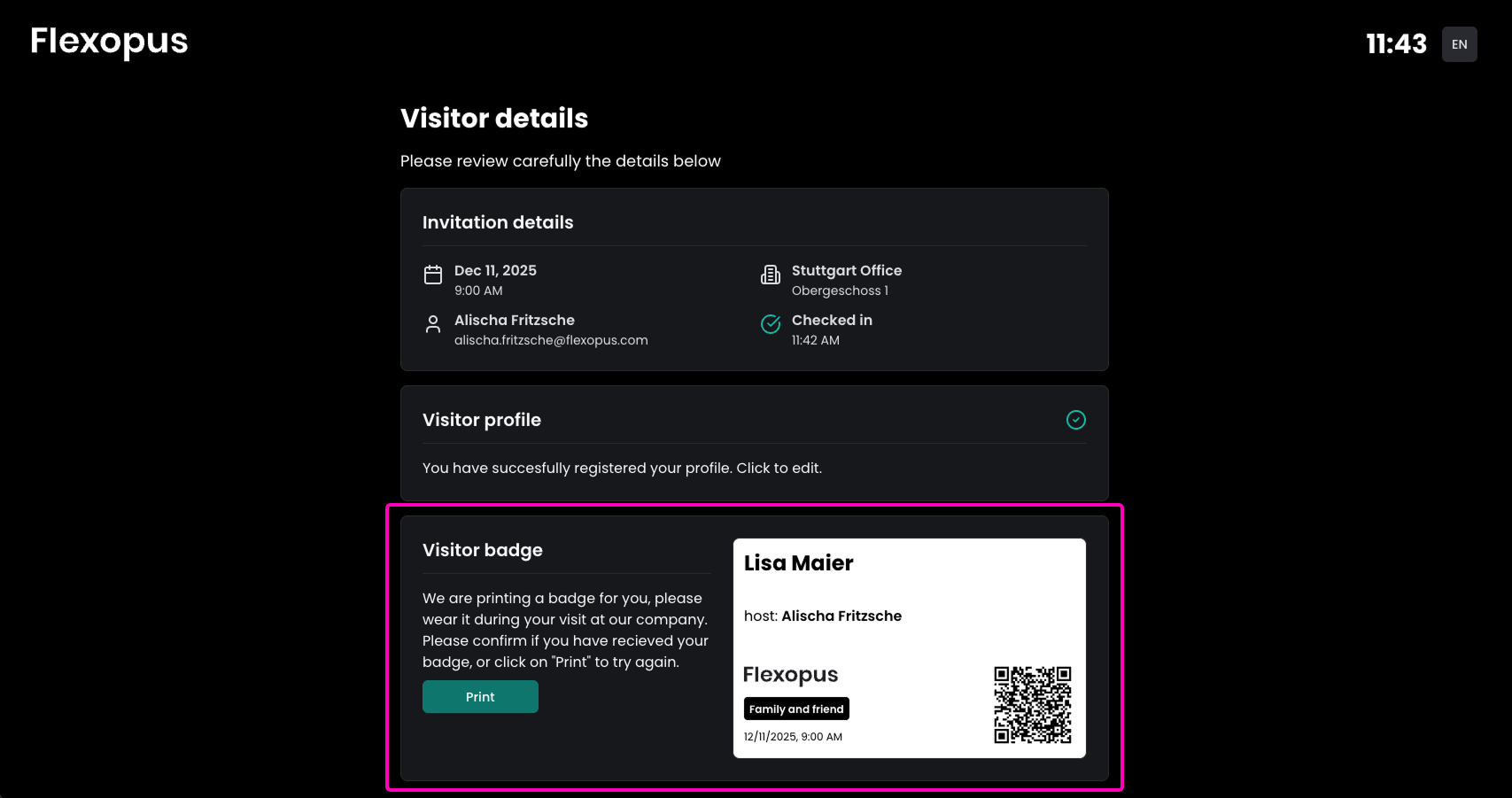
Added Visitor Badge Print
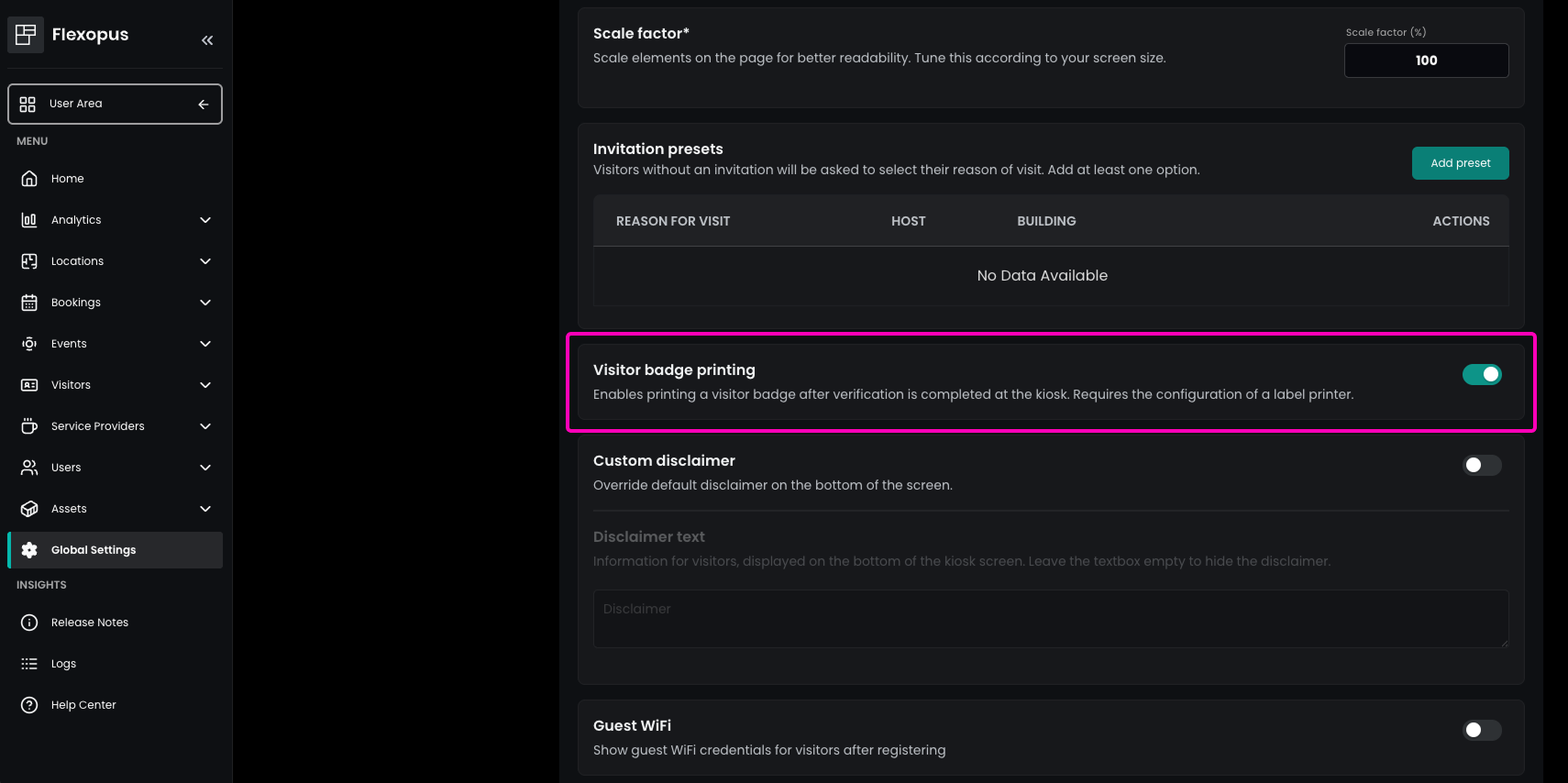
Visitor kiosks now support automatic badge printing. In the Admin Area under Global Settings → Devices, administrators can enable Visitor badge printing after selecting or creating a visitor kiosk device. When activated, visitors can choose to print a predefined badge containing their name and host information after completing the verification process at the kiosk.
Please note that a compatible label printer must be configured for the device in order to use this feature.
Improved Option to Disable QR Code Scanner
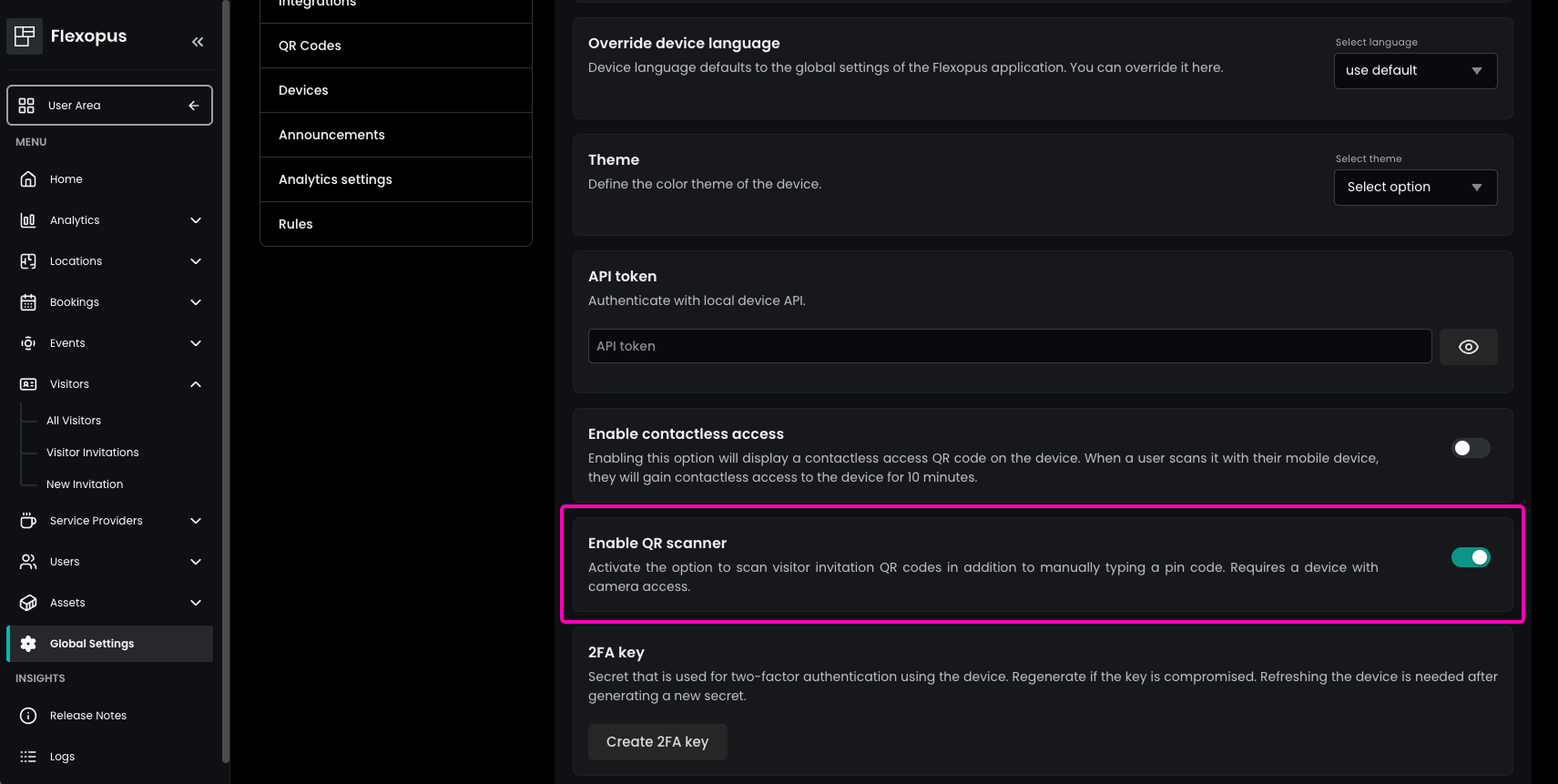
For visitor kiosks devices without cameras — or where camera activation is not desired — administrators can now disable the QR scanner.
The option Enable QR scanner can be toggled under Global Settings → Devices, after selecting the respective kiosk.
Flexopus Assets
Improved Handling of Restricted Asset Bookings
Users can no longer delete bookings for assets with the status “restricted.” Once an administrator has created a booking with such an asset for a user, the user is prevented from deleting it. This ensures that assigned work equipment, e.g., laptops or other essential tools, is correctly recorded and can only be deleted by authorized personnel.