2.55.0
General
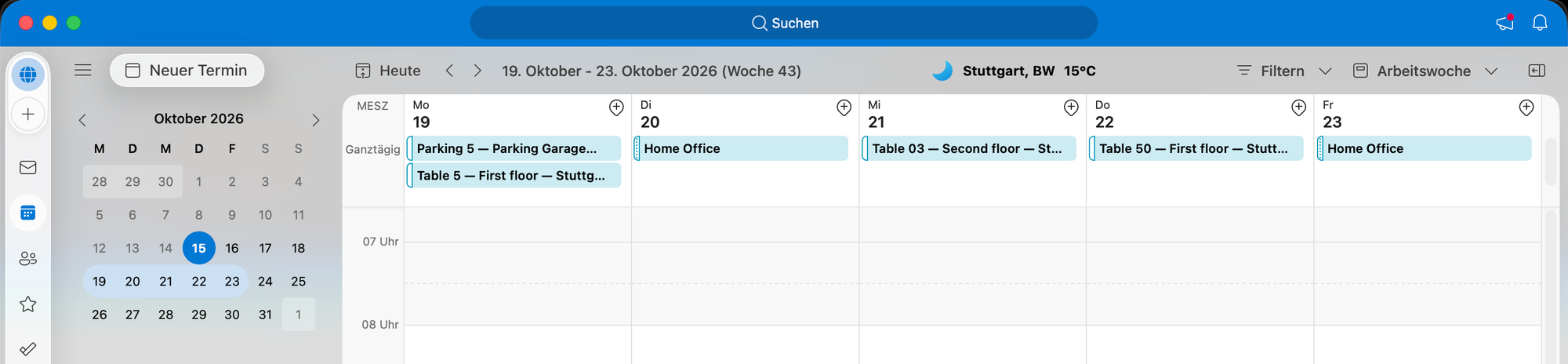
Send iCalendar Events as All-Day Events
Keeping your calendar organized just got easier! With the new iCalendar setting, desk, parking space and home office bookings can now be added to your calendar as all-day events instead of time-specific appointments.
This helps reduce calendar clutter by ensuring that Flexopus bookings do not block individual time slots in your daily schedule while still providing an overview of your upcoming bookings.
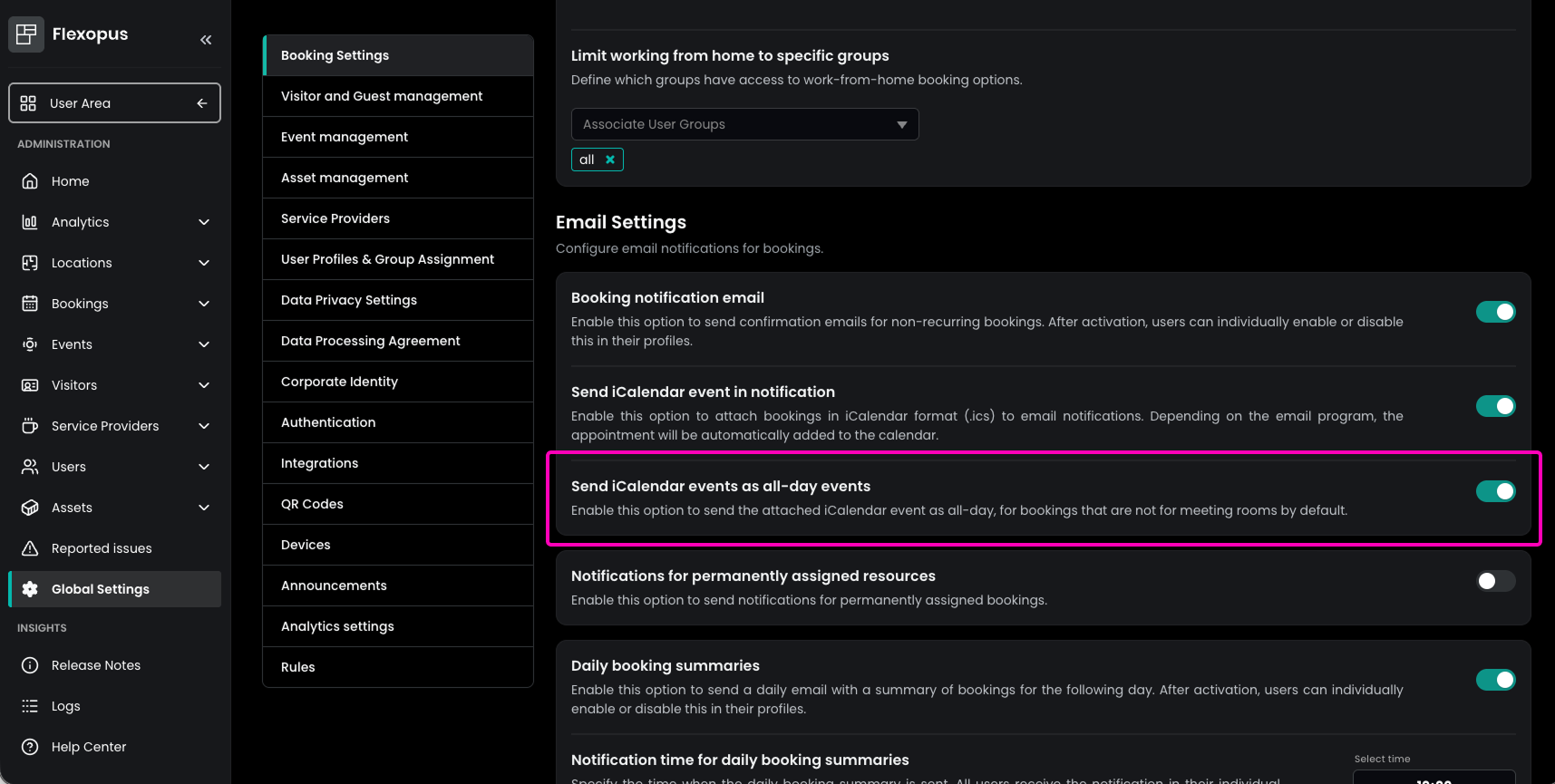
Administrators can set the default behavior in the Admin Area under Global Settings → Booking Settings → Email Settings by configuring Send iCalendar events as all-day events.
Users can also customize this behavior individually under Profile Settings → Notifications. Here, they can adjust how iCalendar events are sent or disable iCalendar notifications entirely if they prefer not to receive calendar invitations for their bookings.
Custom Link
Providing employees with quick access to important company information just became easier with the new Custom Imprint Link feature.
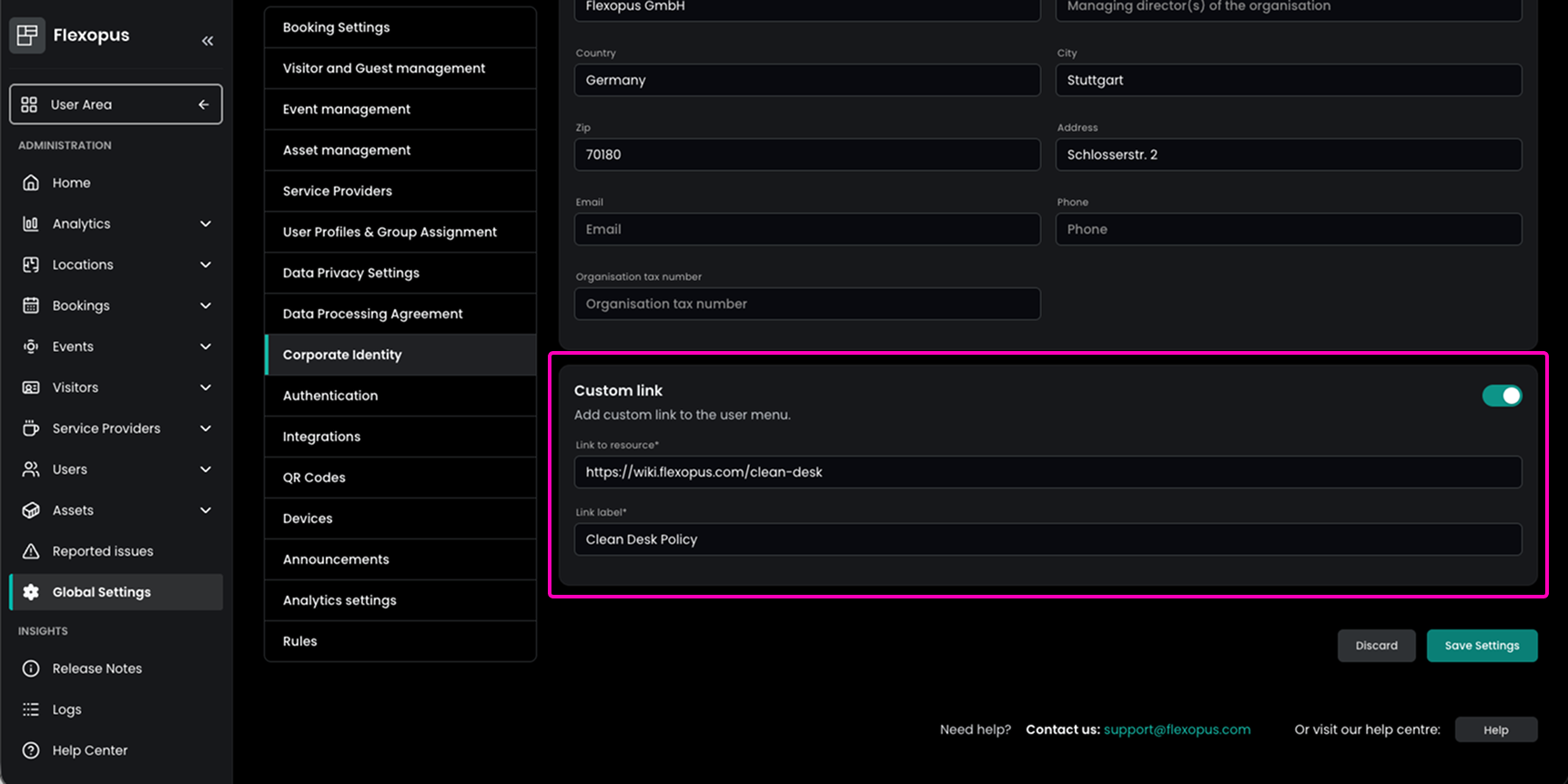
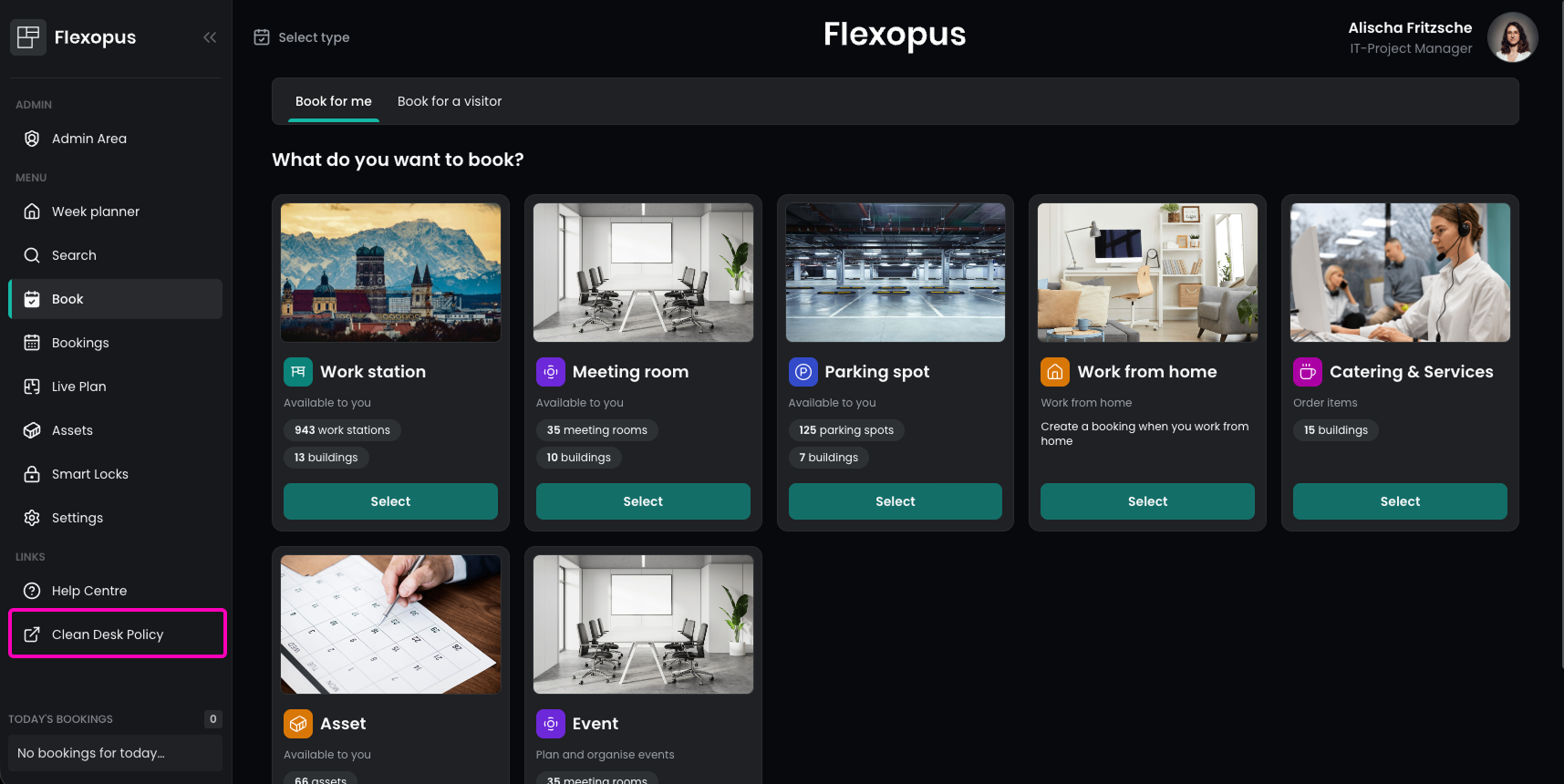
Administrators can now add a custom link to the navigation in the User Area, making it easy to provide access to important internal resources such as a Clean Desk Policy, company guidelines, or other relevant documents and information.
To configure the link, navigate to Admin Area → Global Settings → Corporate Identity > Custom link and add the desired custom URL.
Once configured, the link is displayed directly in the navigation of the User Area, ensuring that important company resources are always just one click away.
Fixed Window Check-in for Parking Spots (Beta)
Managing parking spot check-ins is now more flexible with the new Fixed Window Check-in feature.
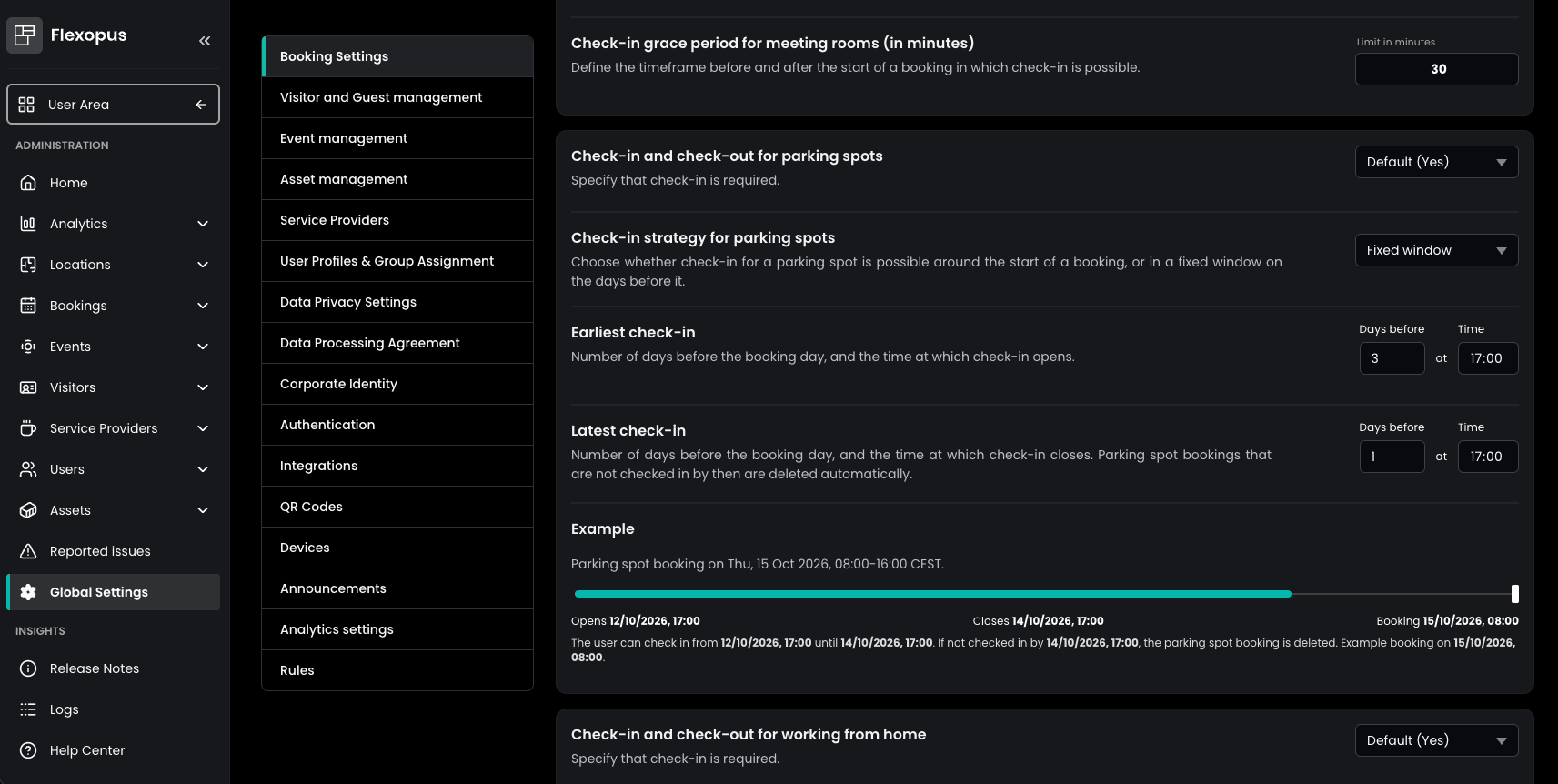
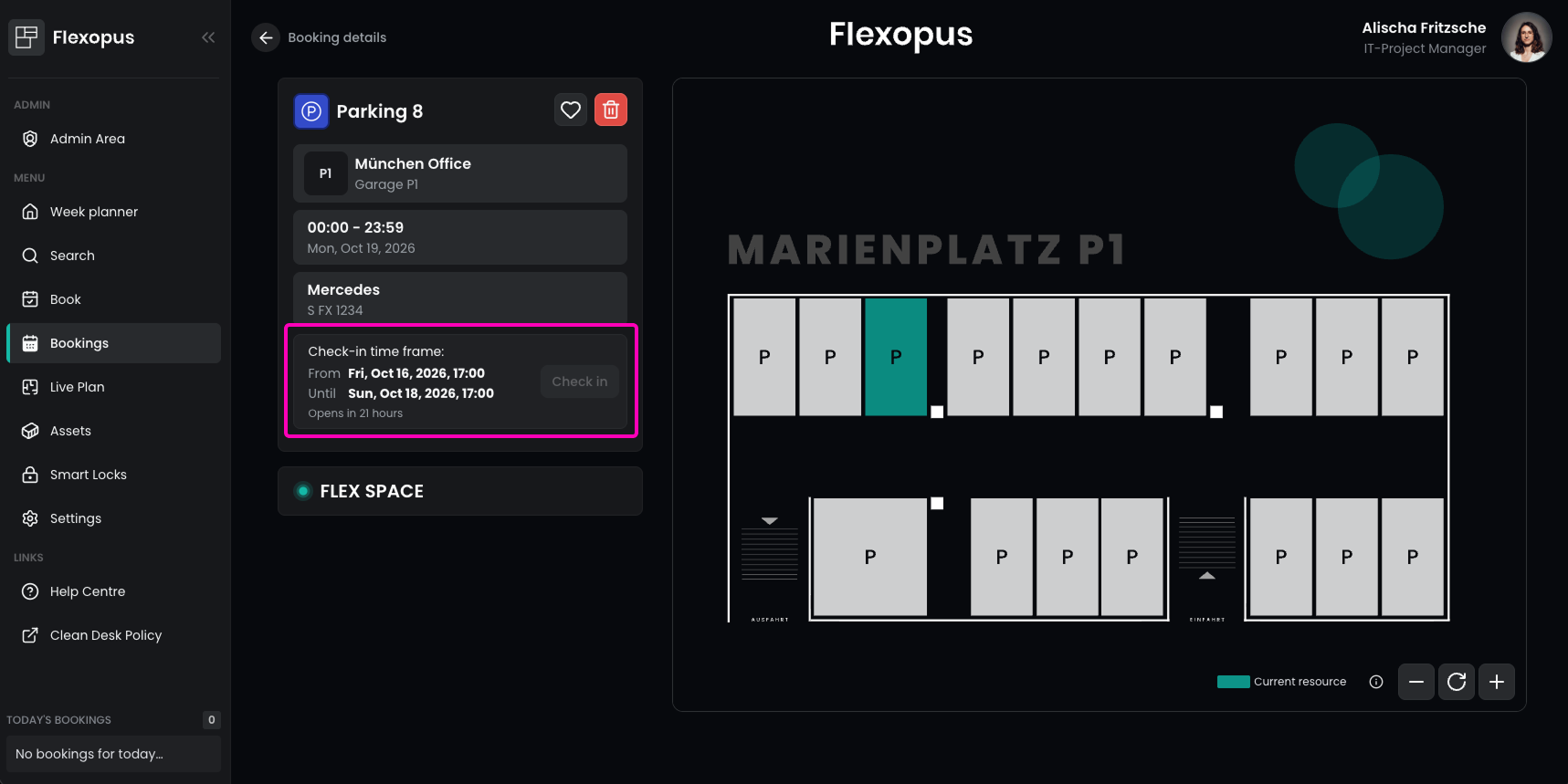
Administrators can now define a fixed time window during which users must check in for their parking spot bookings, even several days before the actual booking date. This helps ensure that unused parking spots become available for other users in advance.
The new setting is available in the Admin Area under Global Settings → Booking Settings → Check-in Feature. Under Check-in strategy for parking spots, administrators can select Fixed window and configure the earliest and latest check-in by defining the number of days before the booking and the exact time.
Flexopus Visitor
No changes.
Flexopus Assets
Custom Asset Fields
Managing asset information is now even more flexible with the introduction of Custom Asset Fields.
Administrators can now define additional fields for individual asset categories, allowing them to store specific information such as laptop specifications, warranty details, or other category-specific data directly within Flexopus.
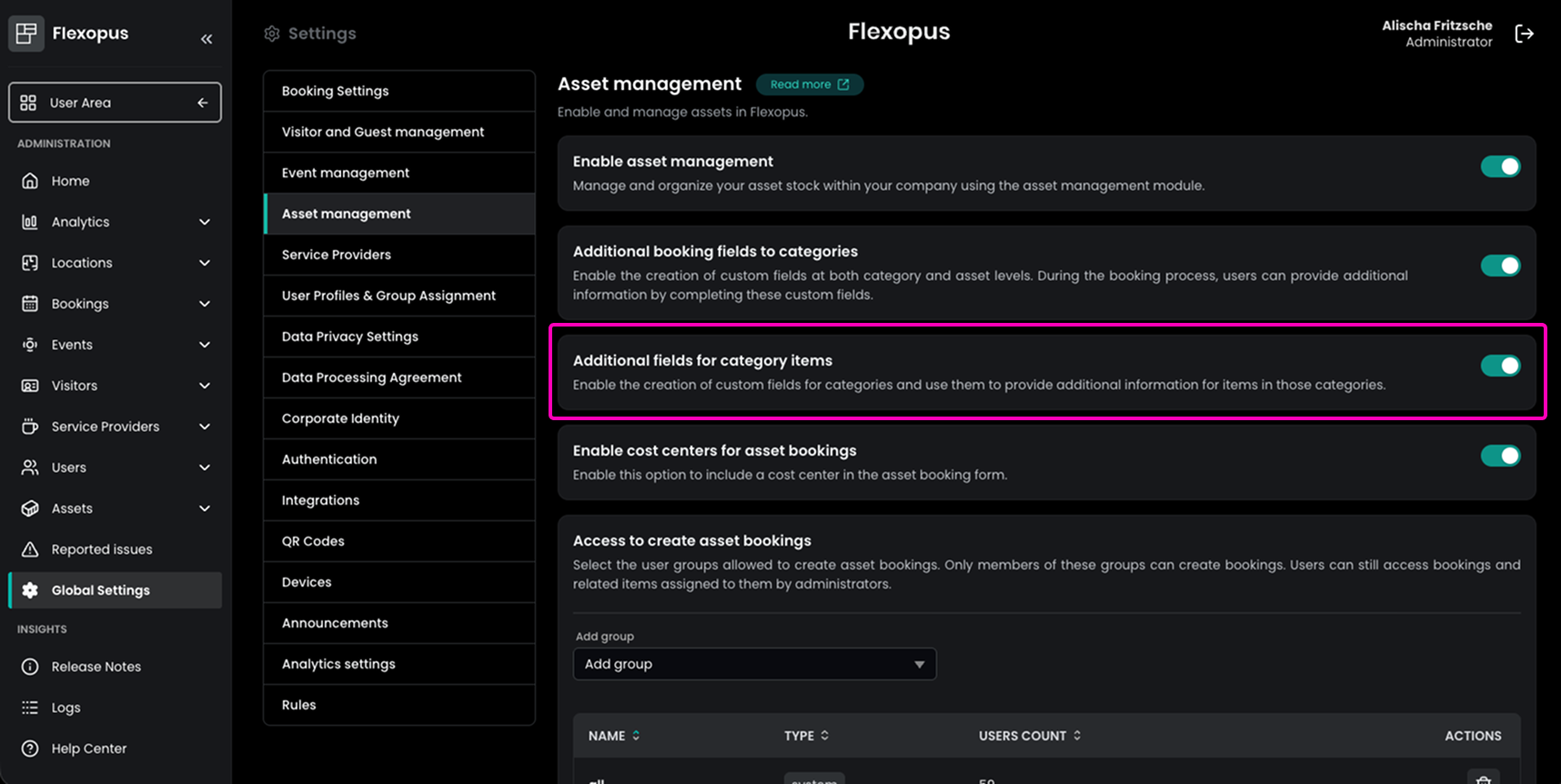
To activate this feature, navigate to Admin Area → Global Settings → Asset Management and enable Additional fields for category items.
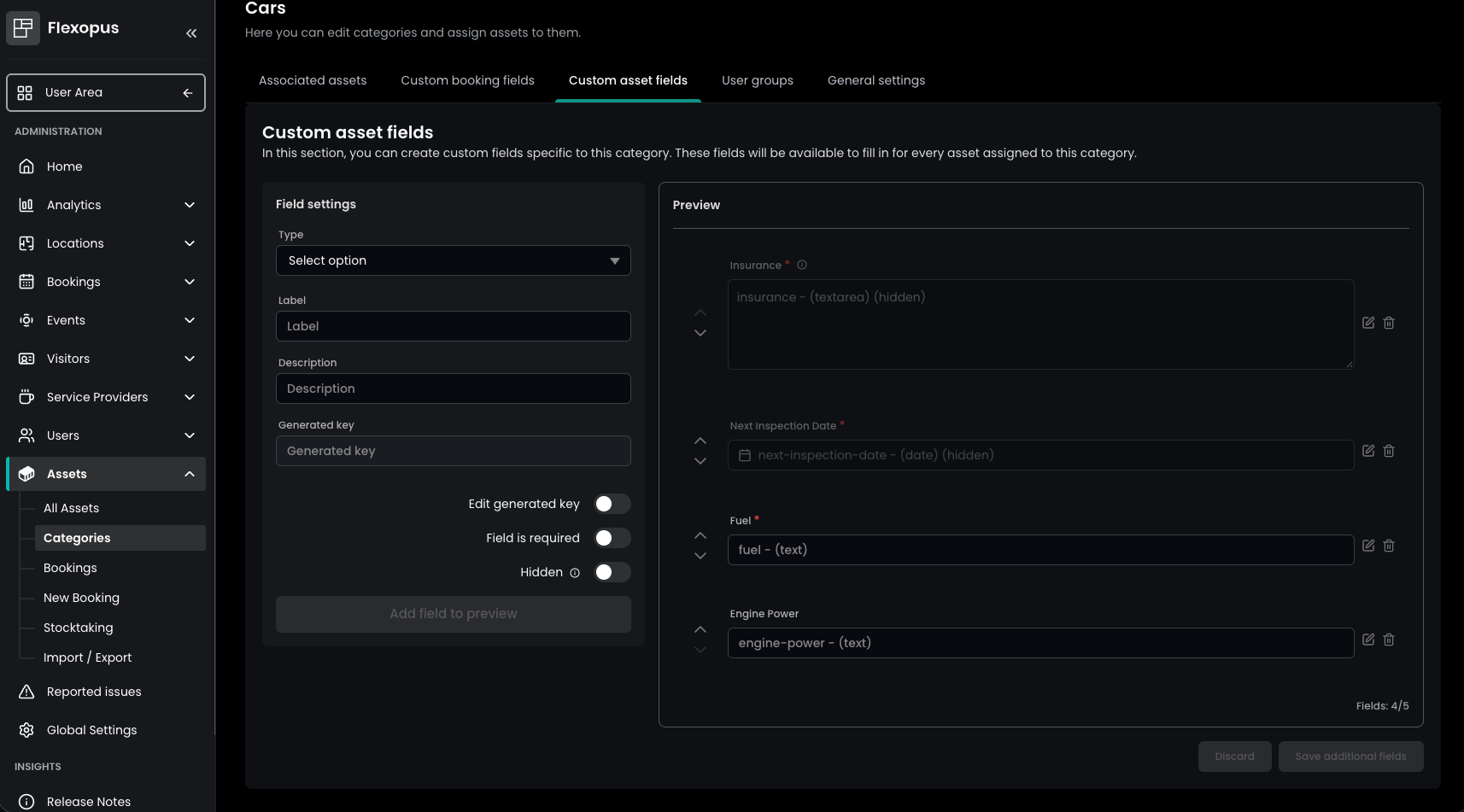
Once enabled, custom fields can be configured under Assets → Categories by selecting the desired asset category. Administrators can choose the field type, define a name, and add a description.
Fields can also be marked as mandatory, ensuring that the required information is provided when creating an asset. Additionally, fields can be hidden from users if they contain internal or administrative information that should not be displayed in the User Area.
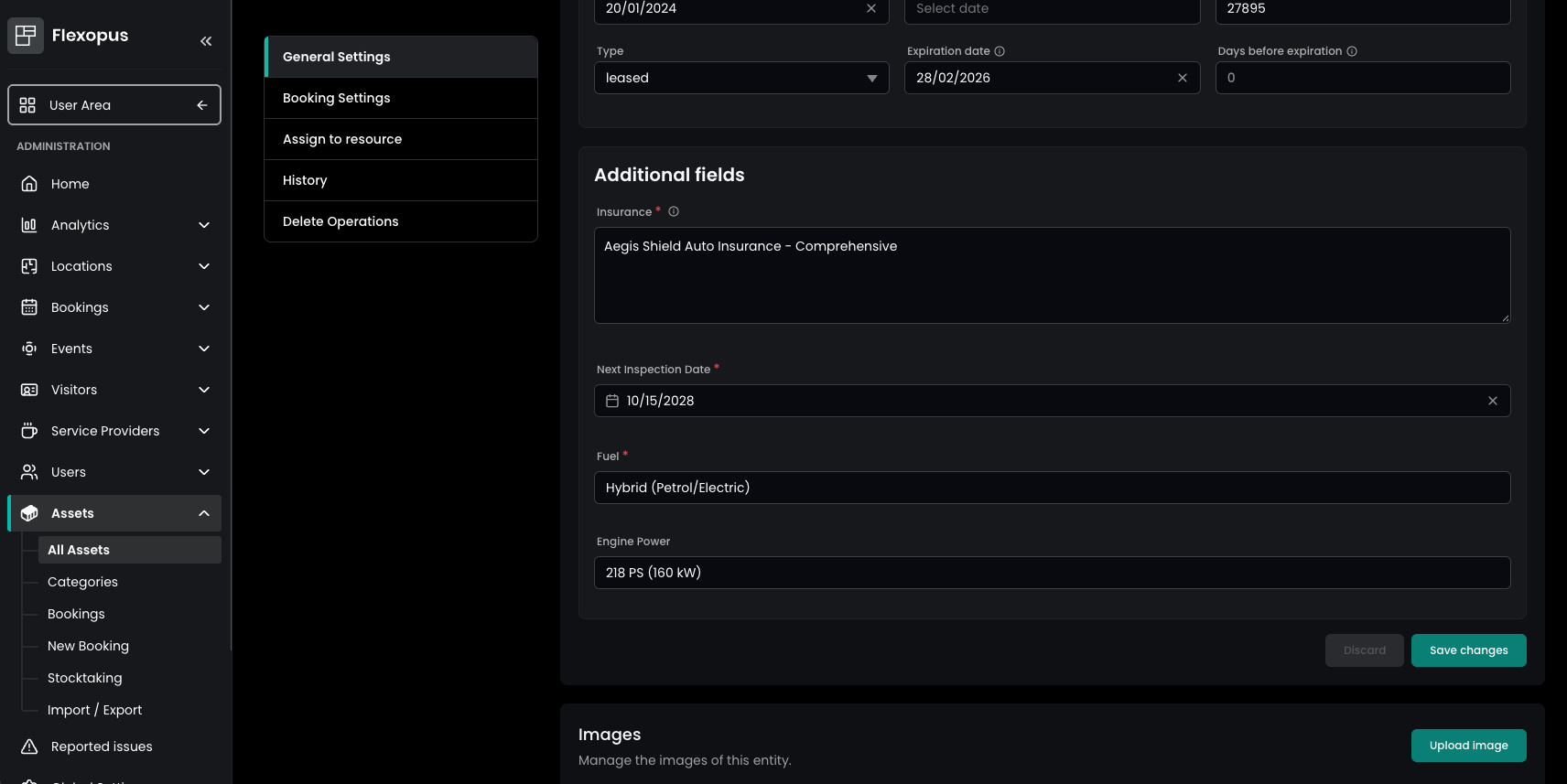
All visible custom fields are automatically displayed in the details of the corresponding asset, providing users with relevant information at a glance.
For larger asset inventories, custom fields can also be populated and updated in bulk using the Import / Export functionality in the Admin Area under Assets.