Asset QR-Codes
Configuration Manual
STEP 1 - Get the QR codes
To get the QR codes for your resources, follow these steps:
- Request the QR codes by emailing the Flexopus support team.
- Include the following information in your email:
- URL of your Flexopus application.
- Number of QR codes you wish to receive (we typically send a few extra).
- Your name.
- Postal address.
Once we receive your request, we will prepare and send the QR codes to you by post. The QR codes are free of charge for Flexopus customers and are designed to be unique and cleaning resistant, ensuring they are durable and high quality.
STEP 2 - Stick QR codes
Once you receive the QR codes, place them on the assets you want to connect them with. It's best to first place the QR codes on all assets before moving on to the next step of assigning them in Flexopus.
STEP 3 - Connect QR codes
To assign QR codes to resources in Flexopus, follow these steps:
- Install the Flexopus app from the Play Store or App Store on your mobile phone.
- Log in to Flexopus as an administrator on the normal user side.
- Get one of the assets with a QR code
- In the Flexopus app, navigate to Assets.
- Select the Asset overview.
- Click the asset you want to connect.
- As an administrator, you will see a tab called QR code (this tab is only visible to users with administrative permissions).
- Click the Assign code button and scan the QR code.
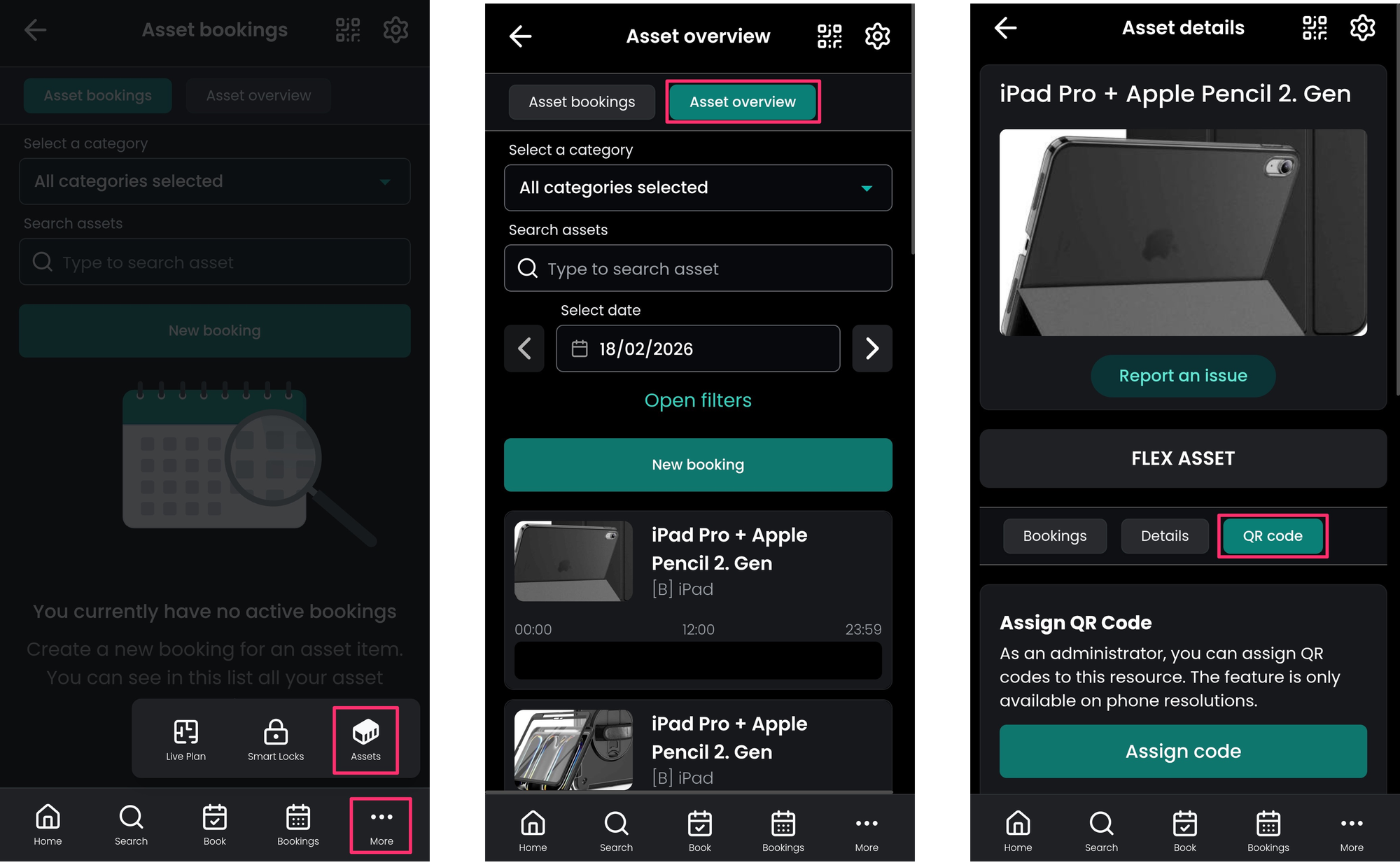
This process links the QR code to the specific asset.
Note: Each QR code can only be connected to one asset. If a QR code was previously linked to another asset, reassigning it will return an error message.
STEP 4 - Test connection
Open the Flexopus mobile application as a normal user and click the QR code scan button. Scan the QR code on the asset and create a reservation. It's enough to test it for one resource.
Deleting QR codes
To delete a connected QR code in Flexopus:
- In the admin area navigate to Assets > All assets.
- Select the relevant asset associated with the QR code.
- Go to the General settings tab scroll down and delete the associated QR code.
Note: If you delete the QR code and wish to reconnect it, you'll need to be onsite to do so.
If you're unsure how many QR codes are connected or where to delete them, go to Dashboard > Global Settings > QR Codes as an administrator to view all connected codes.
Troubleshooting & FAQ
I need more QR codes
Write us an email and we will send more.
I did not receive the QR codes
Write us an email and we will send new ones. Sometimes they might get lost in the process. If you do not receive them within 1-2 weeks, we can send you new ones.
iOS older than 14.3: camera support
iOS supports the use of the camera function only from iOS 14.3. If you use an older version of iOS, you need to update it or use another device with which you can set up the QR codes.
Android devices with multiple camera
For Android devices with multiple cameras, do not select a wide-angle lens, otherwise the QR codes will not be recognized correctly.