Asset booking for Users
Overview
With Flexopus Assets, employees can easily book all the equipment they need — from hardware like microphones, laptops, or beamers to everyday items such as pool cars, pet baskets, or kitchen gadgets. In fact, any resource your organization has published in the Flexopus Asset Management can be booked with just a few clicks.
Booking Process
To book an asset, you can start the process in two ways: either via the newly added tile under Book or through the new Assets tab. We will take a closer look at the Assets tab later, so for now we will focus on the new tile.
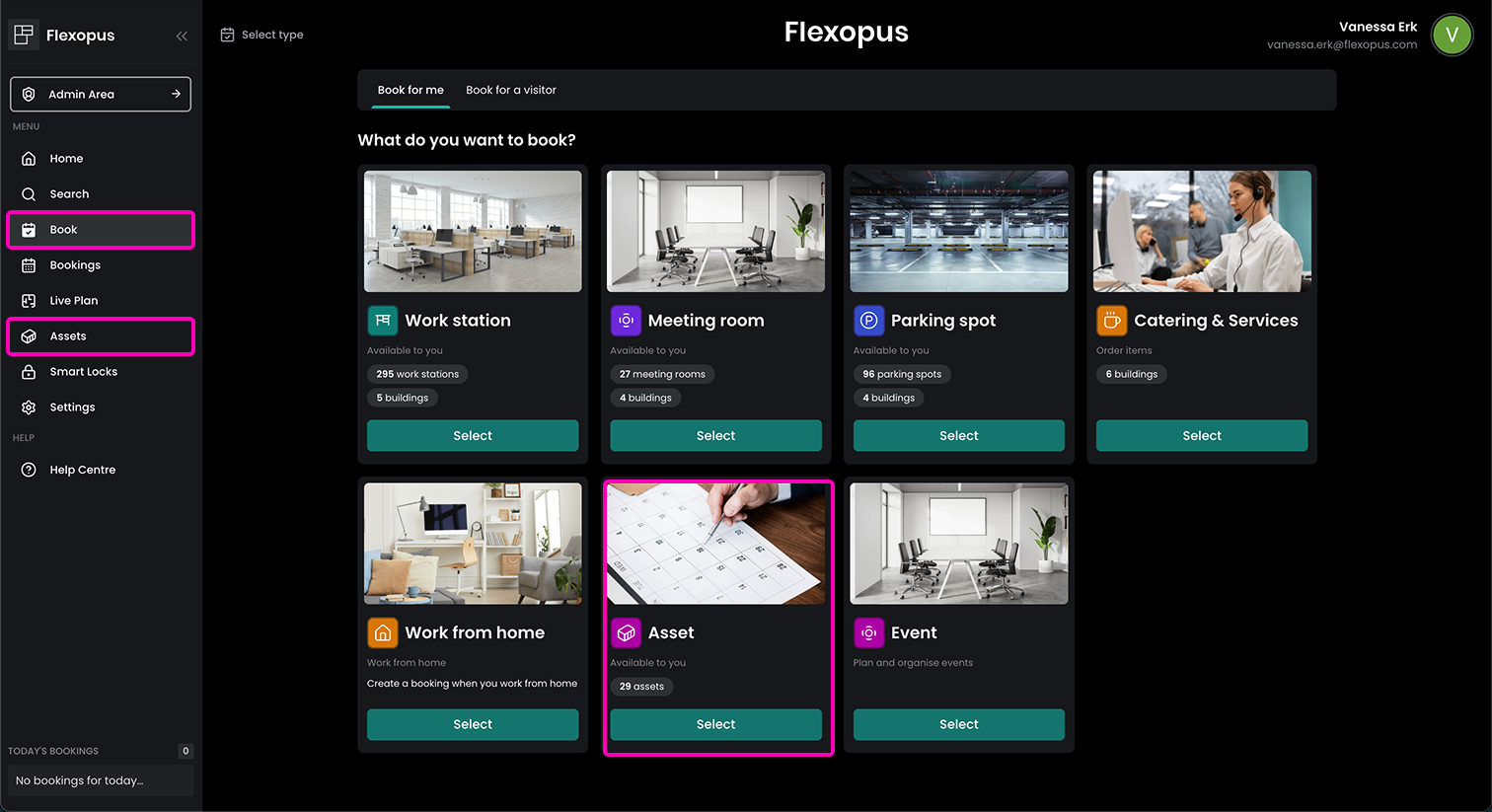
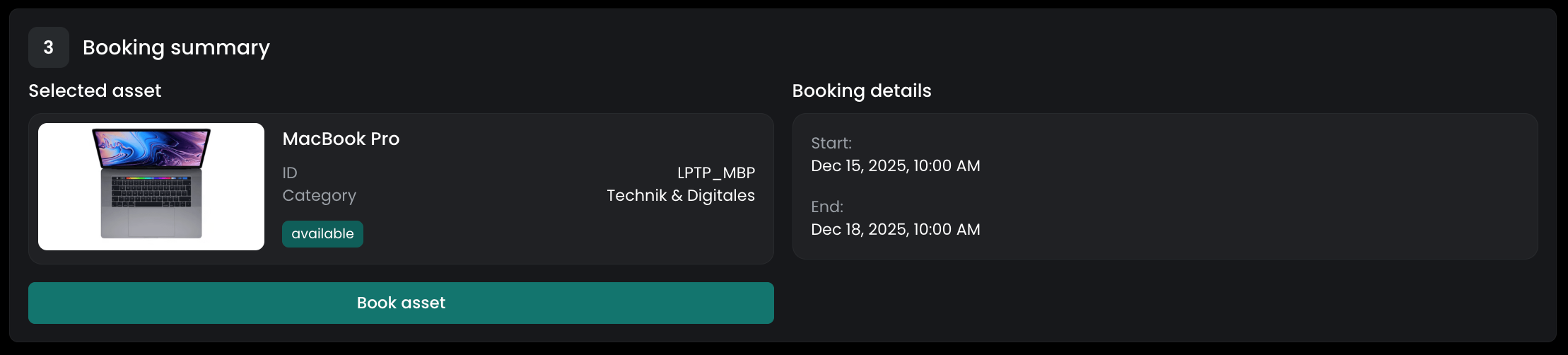
After selecting the Asset type, you are taken to the asset booking page. First, choose the date and time when you need the asset. In the next step, you can filter by category, search for a specific asset, and decide whether you want to display only available items. Having selected an item, you'll find a booking summary as the final step, where you can confirm and finalize your reservation.
Asset Tab
The new Assets tab brings together all relevant information about both available assets and your personally booked items. It provides a complete overview of your bookings as well as detailed information for each asset.
Asset Bookings
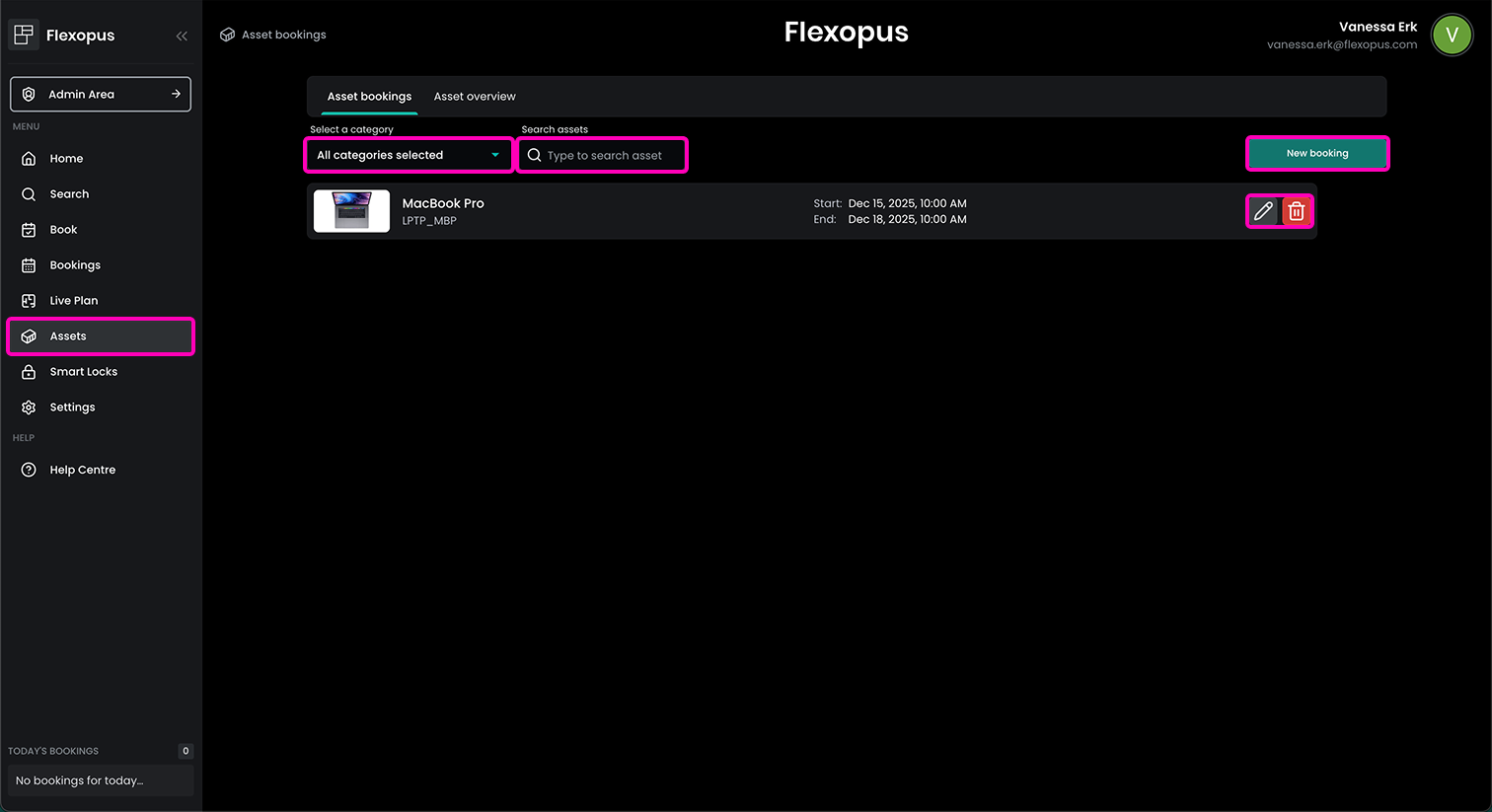
All your asset reservations are listed in your personal asset booking overview. After completing a reservation, you are automatically redirected there. You can also access this overview at any time by navigating to the Assets tab.
You can again filter for categories and specific assets here to easily find the booking you are looking for, which is very helpful if you have multiple asset reservations. Furthermore, you can also directly create a new asset booking from here by clicking the green button New booking.
Using the pencil icon you can edit start and end time of your asset booking while you can also delete the reservation using the garbage bin icon.
Asset Overview
Under the Assets tab, you will also find a general overview of all assets available in your organization. As before, you can filter by category, search for specific assets, and select a date to see their availability for that day.
From here, you can also create a New booking.
For each asset, a timeline visualizes its availability on the selected day — red time slots indicate that the asset is already in use.
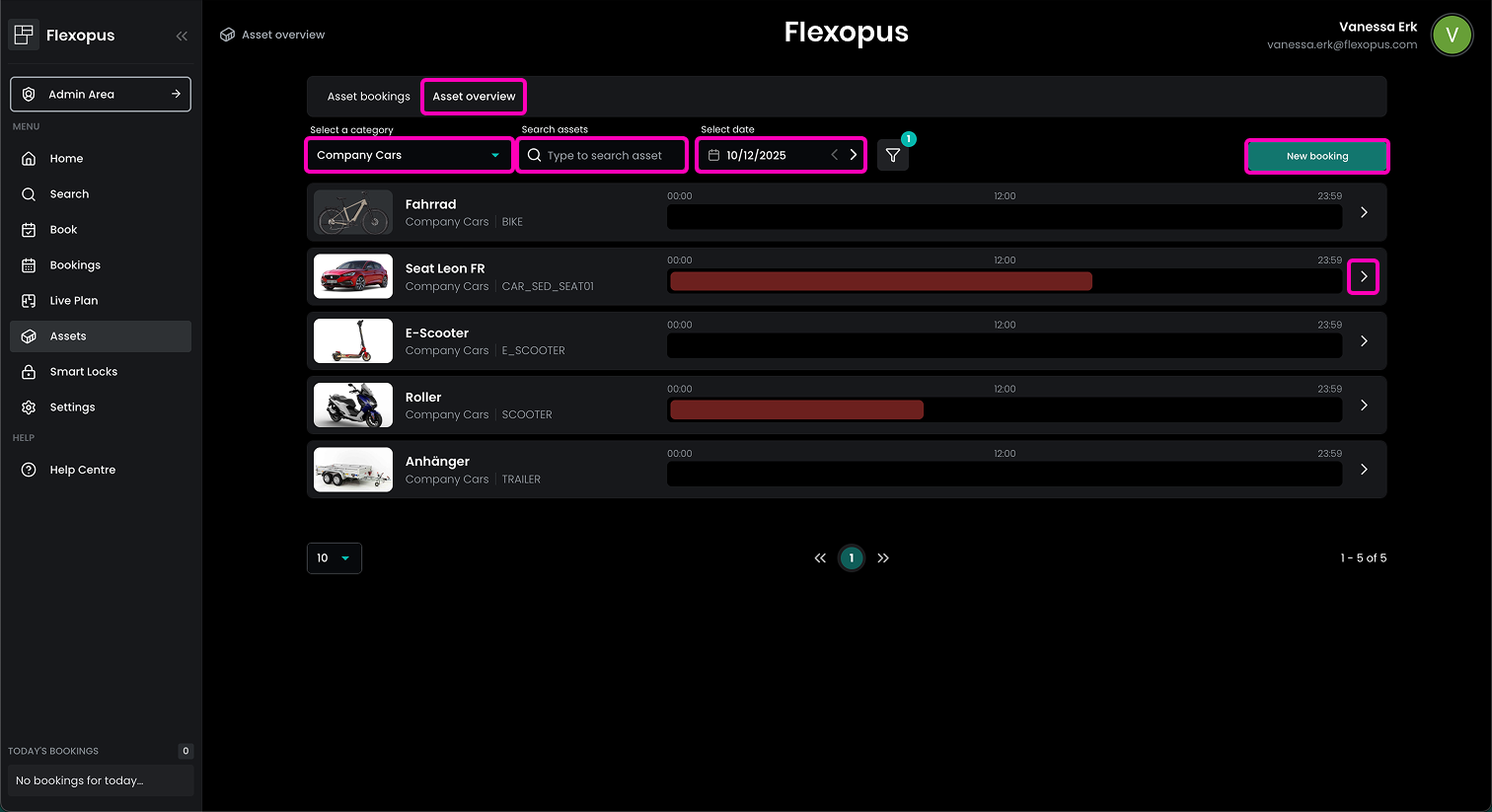
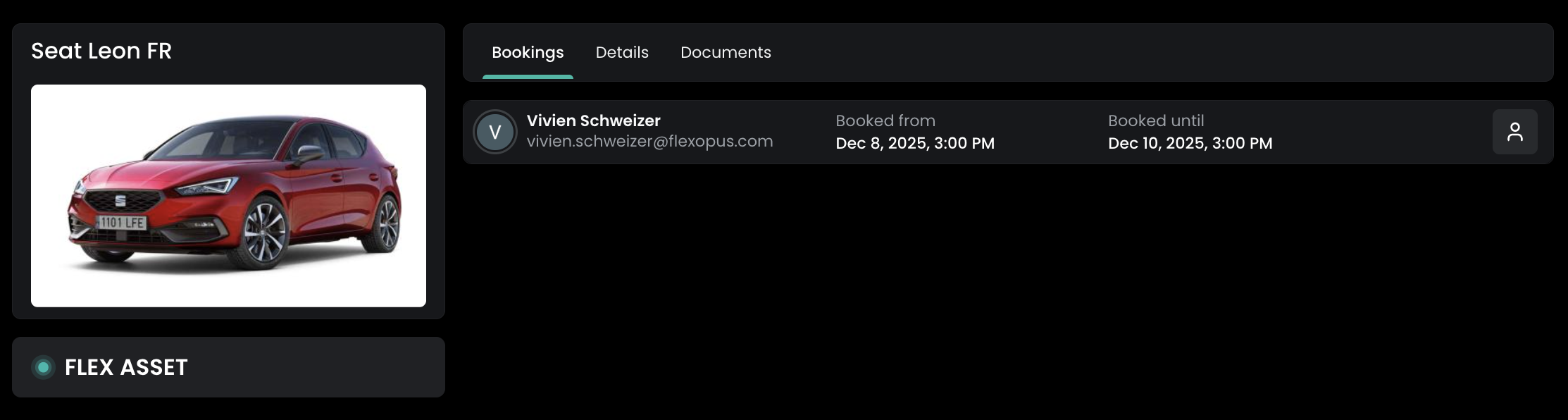
Clicking on the arrow next to an asset you are navigated to the asset details. Under Bookings you see all active and upcoming bookings for this specific item and immediately get insights who is currently using that asset.
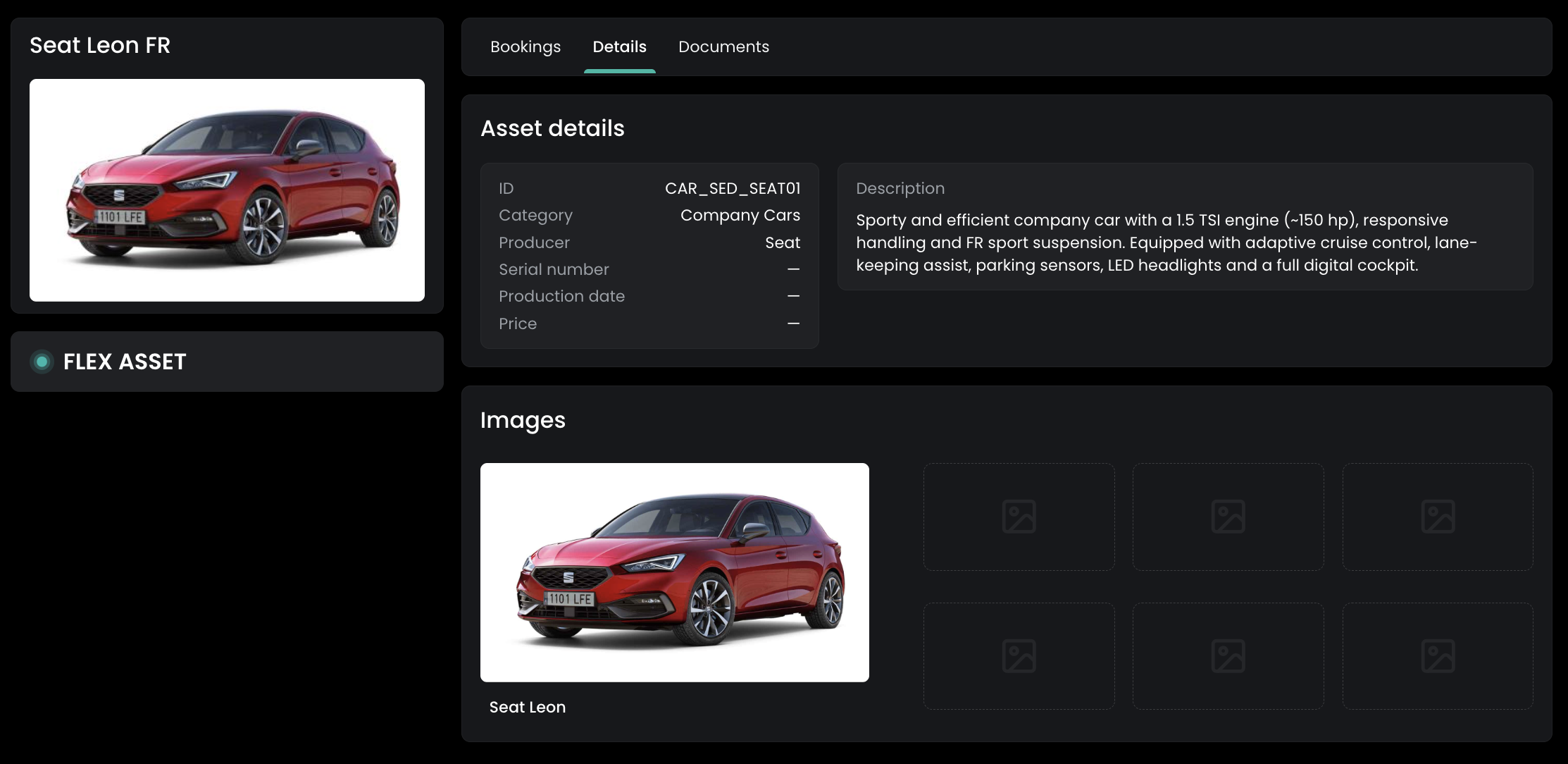
Under Details, you can view all information provided for the selected asset, such as important usage notes or a general description. You will also find all images uploaded for this asset in this section.
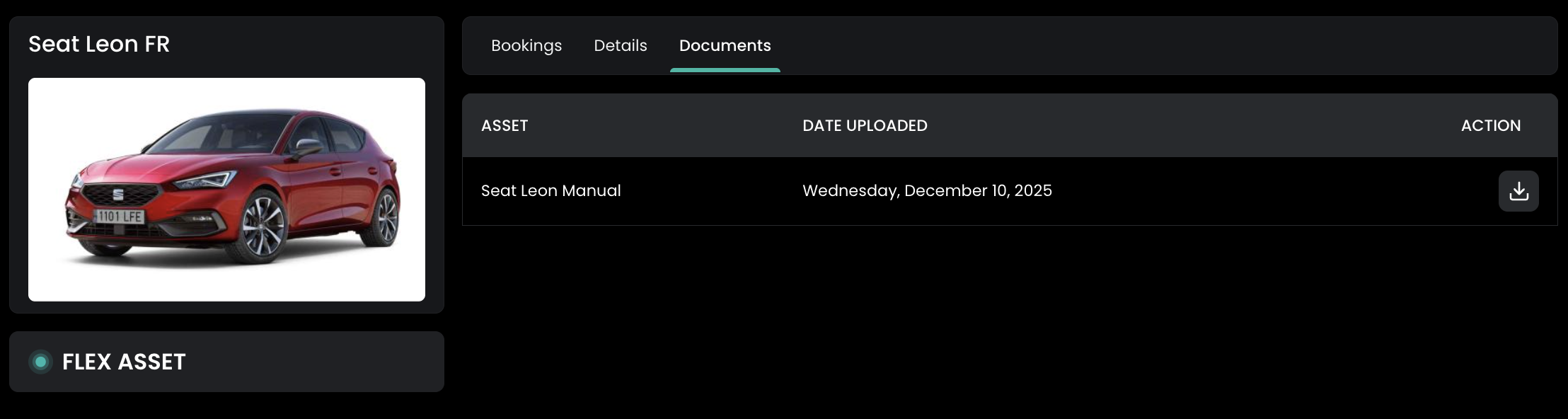
If your administrators have uploaded documents for an asset — such as instruction manuals or certificates — you can find them under Documents.