Event Management
The event management is an extended room booking solution and offers options like inviting participants, booking multiple rooms, adding a description and optionally adding catering & service positions.
Create an event
Once your organization activated the event management, a new tile is added on the booking page.
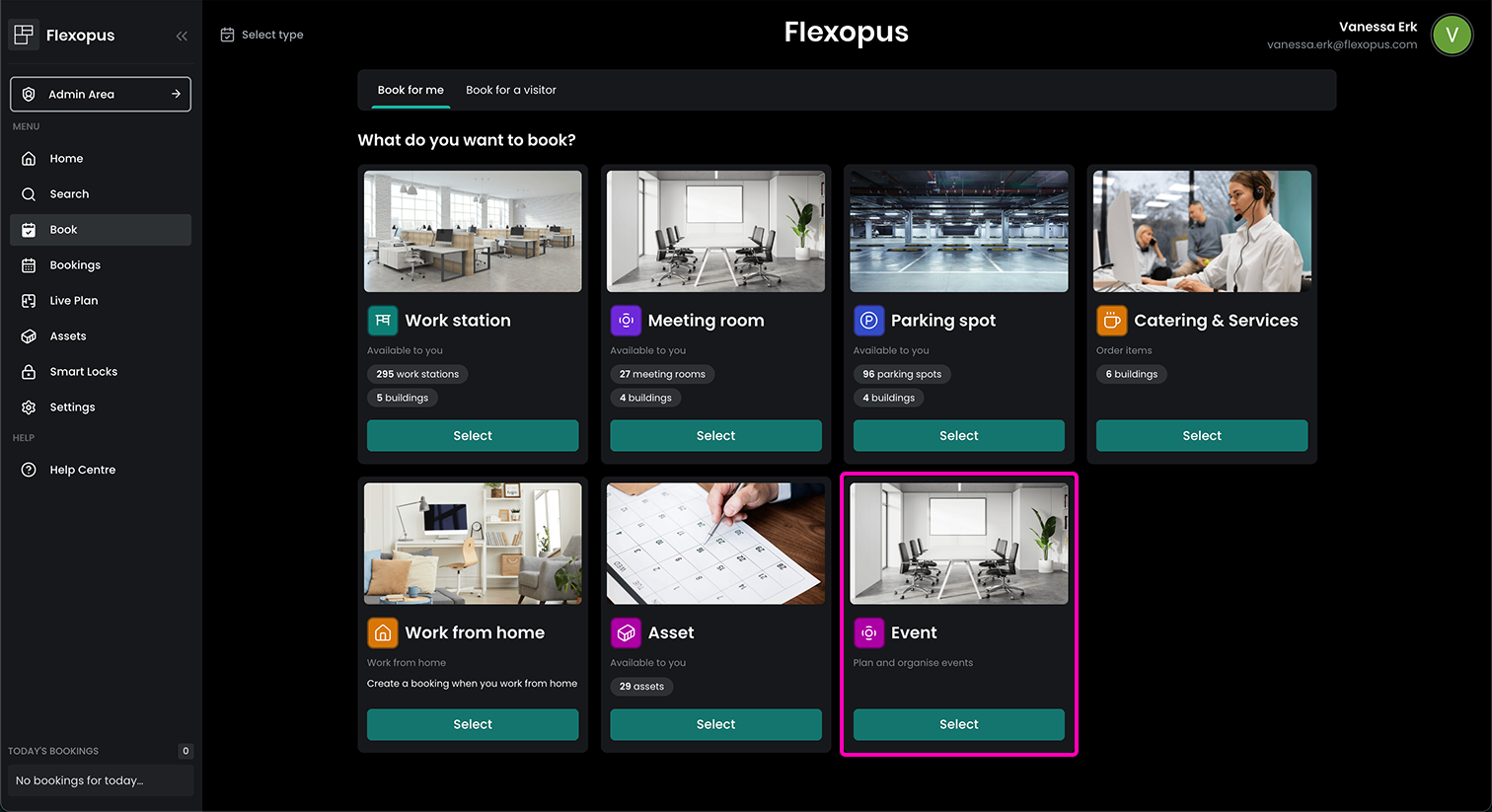
Once you click on it, you are navigated to the event planning overview where you can see all your favorite meeting rooms or you can filter by location. You immediately see the occupancy of those rooms and can directly decide for a room that fits your needs.
The following article shows you how to define your favorite meeting rooms to quickly and easily access your preferred locations:
 Daniel Fafula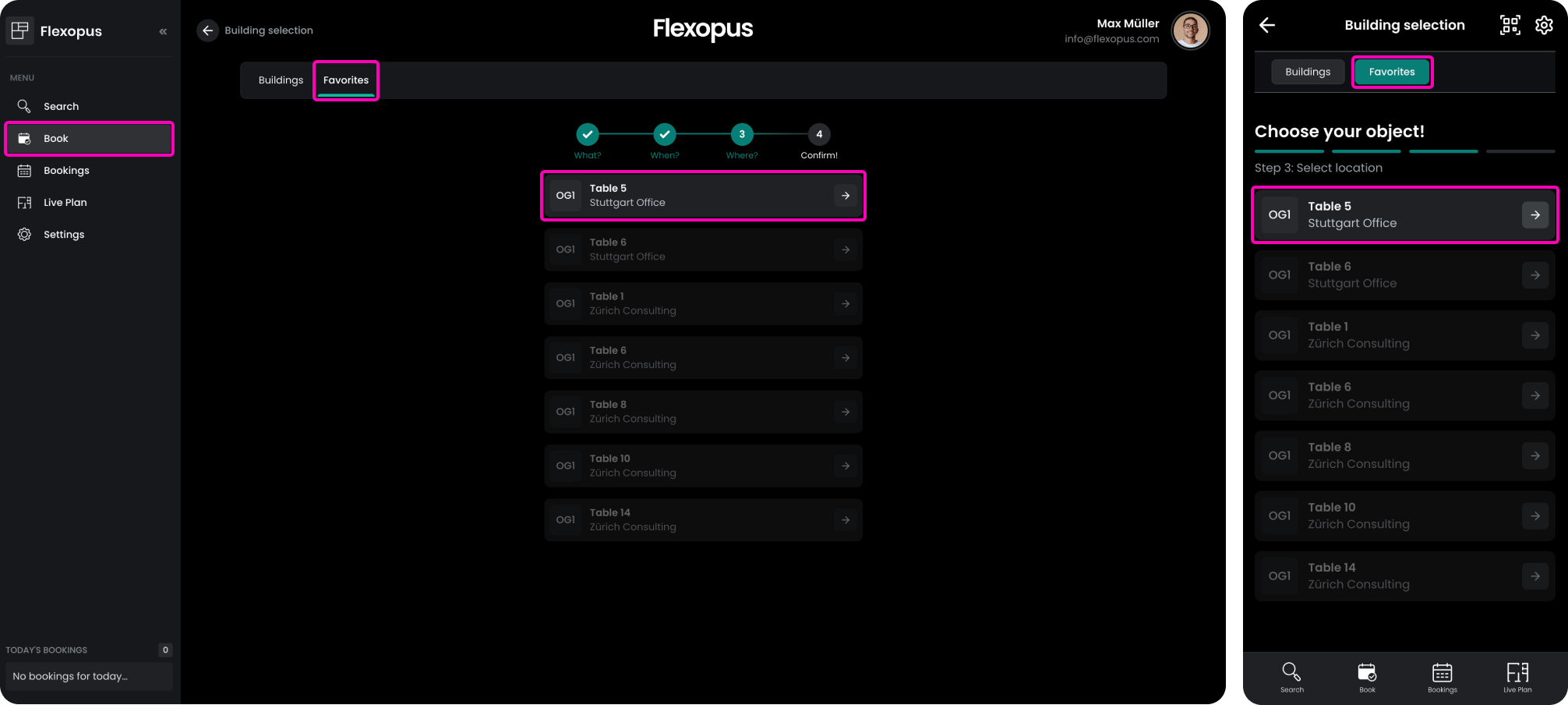
You can now start the event creation process by either selecting a time frame in the availability overview or by pressing the green button Create event.
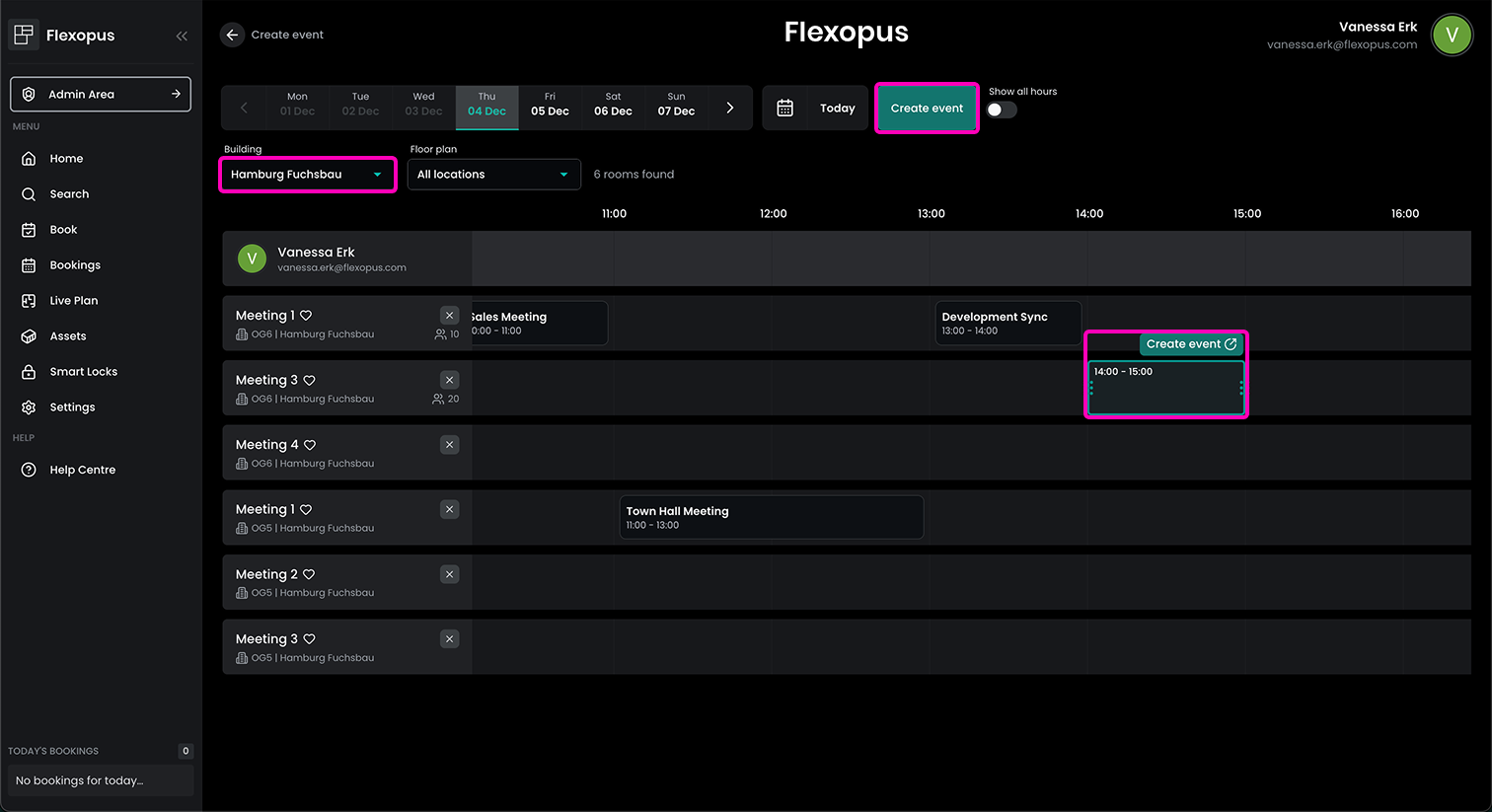
Event creation process
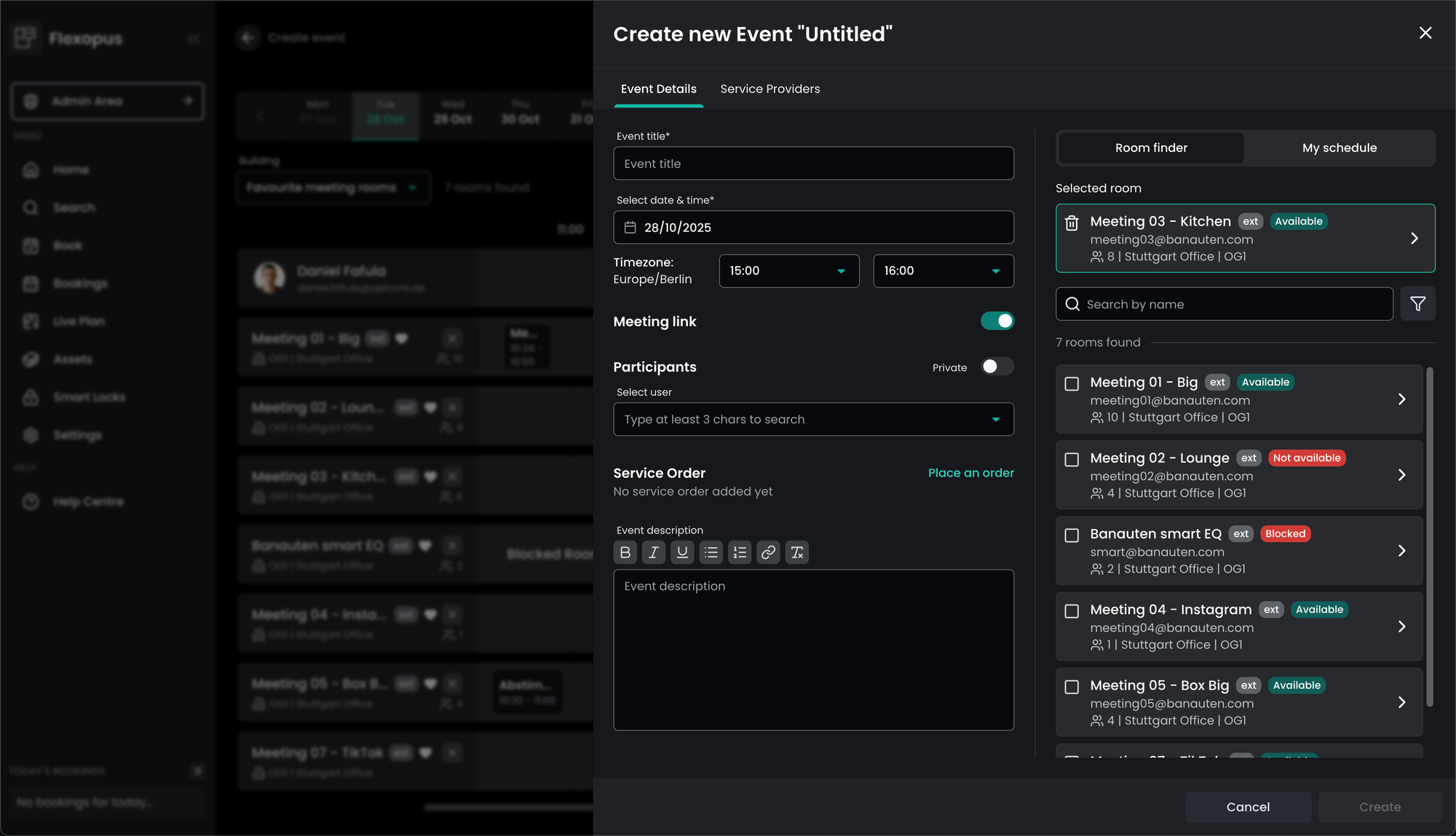
Triggering the event creation process opens a new window. Here you can define the title of an event, select date & time, invite participants and pick one or more rooms for your event. If your rooms are connected via Microsoft Exchange Online you can also directly create a meeting link for external participants. You can also enter a description with further information or an agenda for your meeting.
Adding service orders
If you are also using our Catering & Services feature, you have the option to immediately attach a service order to your event. This could be, for example, instructing the facility manager to arrange the seating in a certain way or placing an order with the caterer responsible for providing food for the event.
To place a service order, click on Place an order or switch to the Service Providerstab. Here you can select for which room you want to create an order.
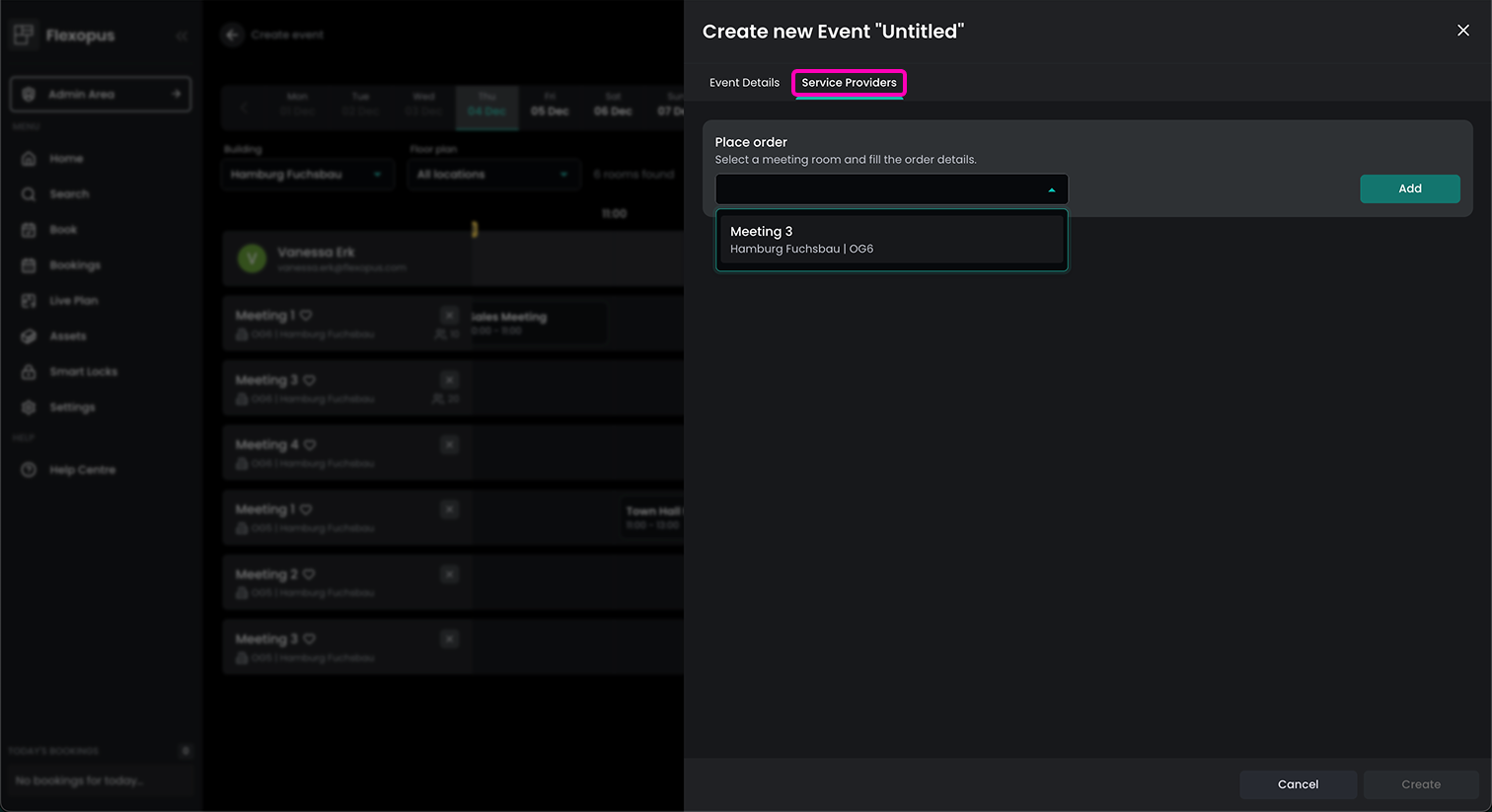
Clicking on Add opens the window to create the service order.
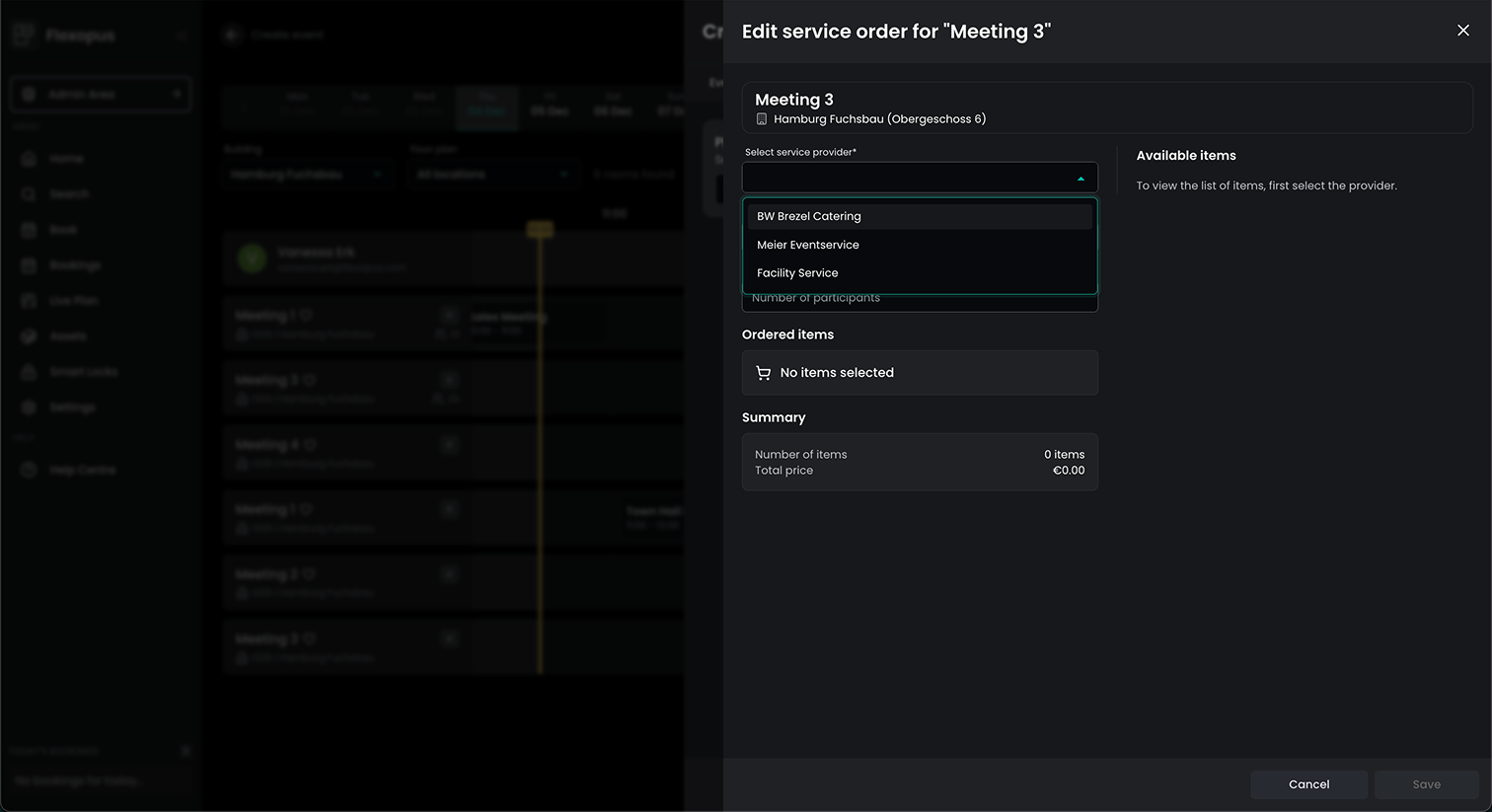
More information about Catering & Service orders can be found here.
 Daniel Fafula
Final Step
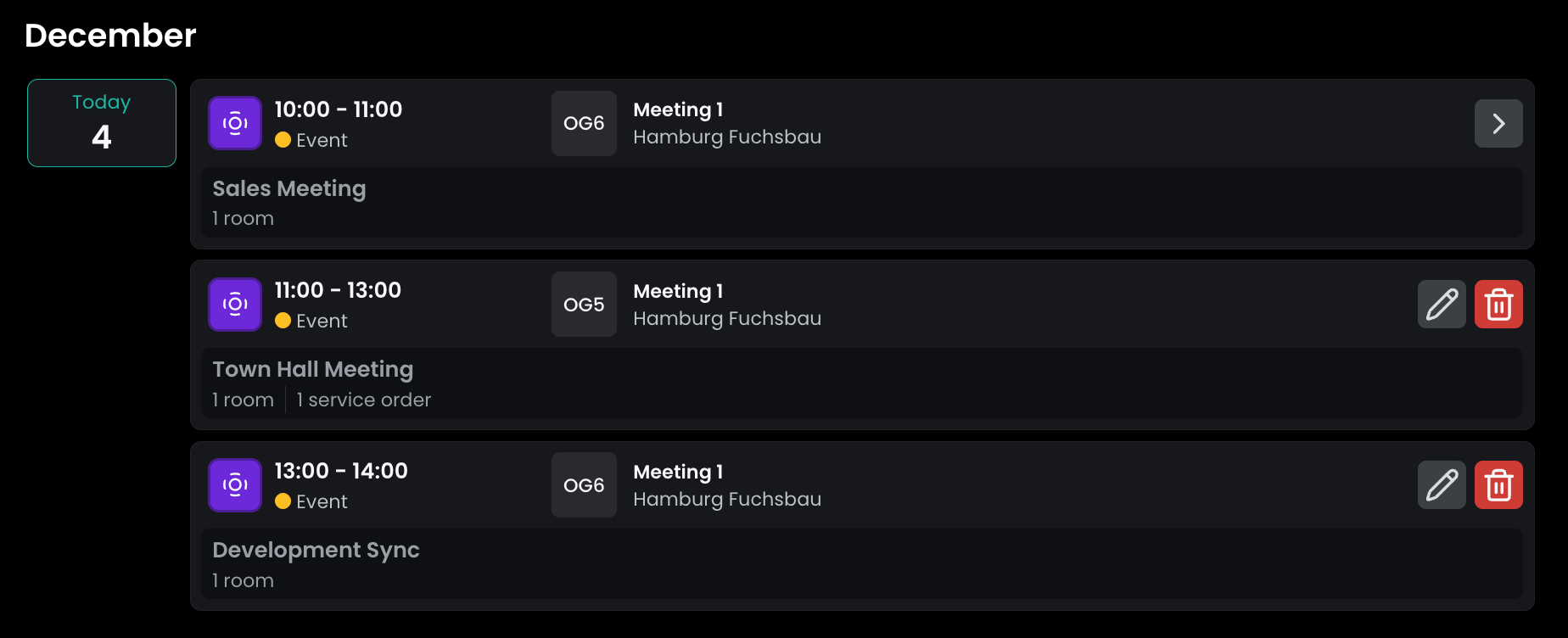
Once all the details for the event have been entered and the event has been created, you will be redirected to your personal booking overview. Here you can see all the events you have created, just as you are used to with your regular resource bookings.