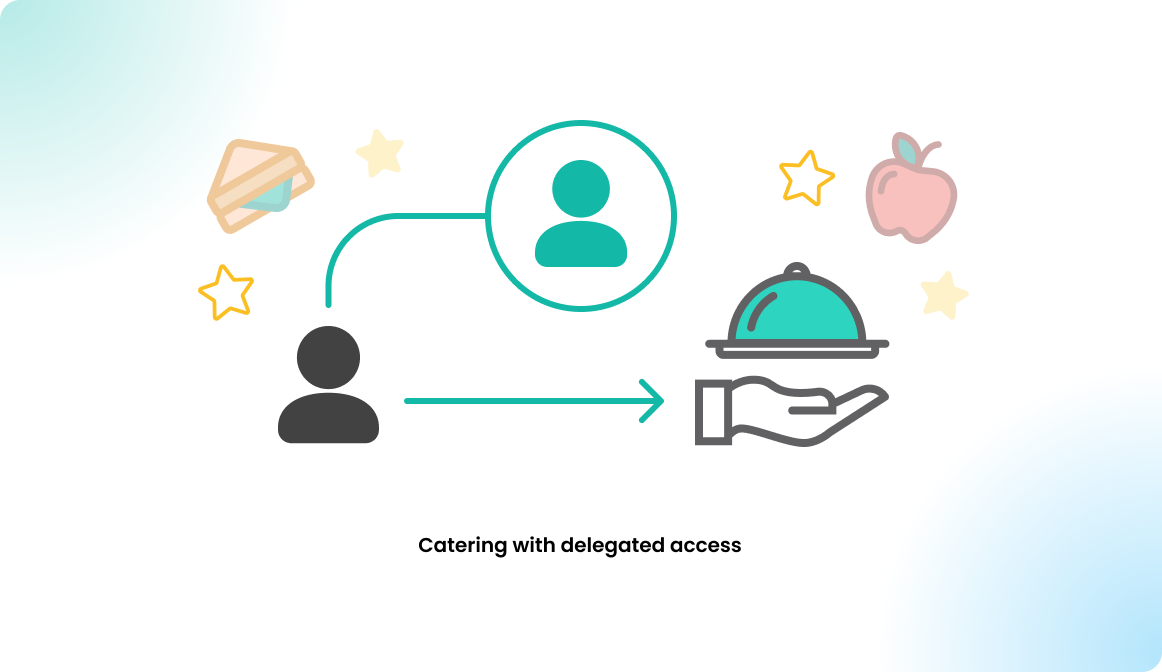
Catering with delegated access
Overview
You have, by default, four options to order catering service:
- Standalone catering service order | Flexopus web appliction.
This way you can order a catering service for a specific time; this is a static order, which is not connected to any meeting room booking. You need to cancel and change the time manually. This option may be disabled by administrators for you. - Event-based catering service order | Flexopus web application.
You can add a catering service order in Flexopus to an existing event with room booking. This way the event is connected to the event and room booking. Changing the time of the event will move the catering order as well. Canceling the catering order will cancel the catering order. - Event-based catering service order | Outlook AddIn
You can create an event-based catering order using the Outlook Add-In as well. Editing the event or cancelling the event will affect the catering order as well. - Contact the service provider | Phone or Email
You can contact the service provider and ask to create a service order for you. The service provider administrator can create standalone catering orders manually in the admin area.
In each case the catering order can be performed only by the user who is requesting the order. If you are an assistant or you manage the calendar of another user, then you cannot order for the user by default.
Solution:
You can request delegate permission from your Flexopus system administrators to get access to the reservation of a specific user. This way you can log in to Flexopus and switch to the delegated user's account, and you can manage all of his reservations. You can create and edit the catering order in Flexopus. This option does not apply for the Outlook ordering option.
Instruction manual
Here is a step-by-step manual to explain the delegated catering order option.
STEP 0 - Request delegate permissions
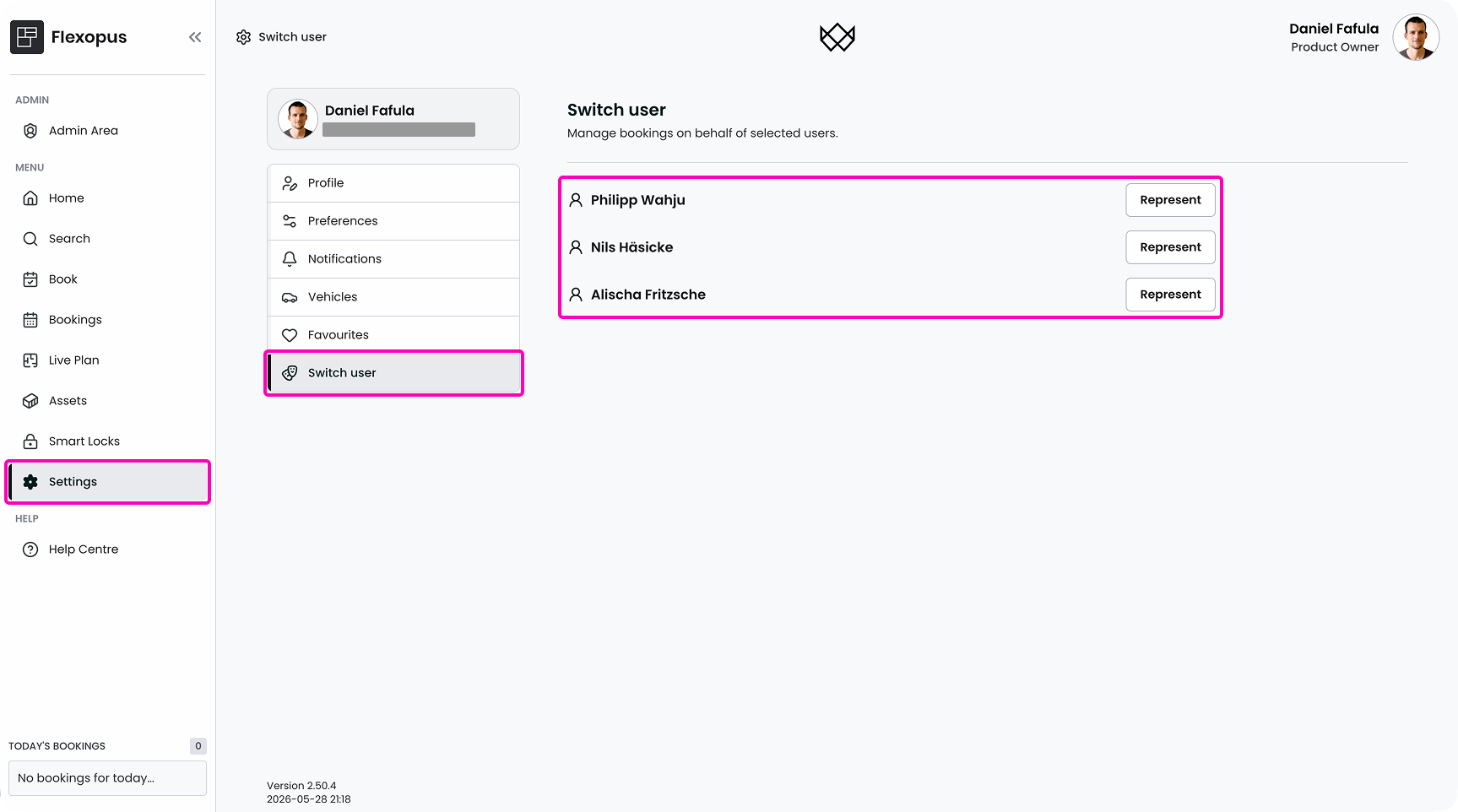
Navigate to Profile > Switch User. If you cannot see this option, then you have no permission to manage the bookings of another user. Contact your Flexopus administrator to grant you this right.
STEP 1 - Switch user
If you see the Switch User tab, then you can manage the booking of the listed users. Click on Represent.
STEP 2/a - Order standalone catering
In case the standalone catering service order option is enabled, you can order catering service for the selected user independent of the user's room bookings and events. The catering will be delivered at this fixed order time. This option may be disabled, based on the admin's settings.
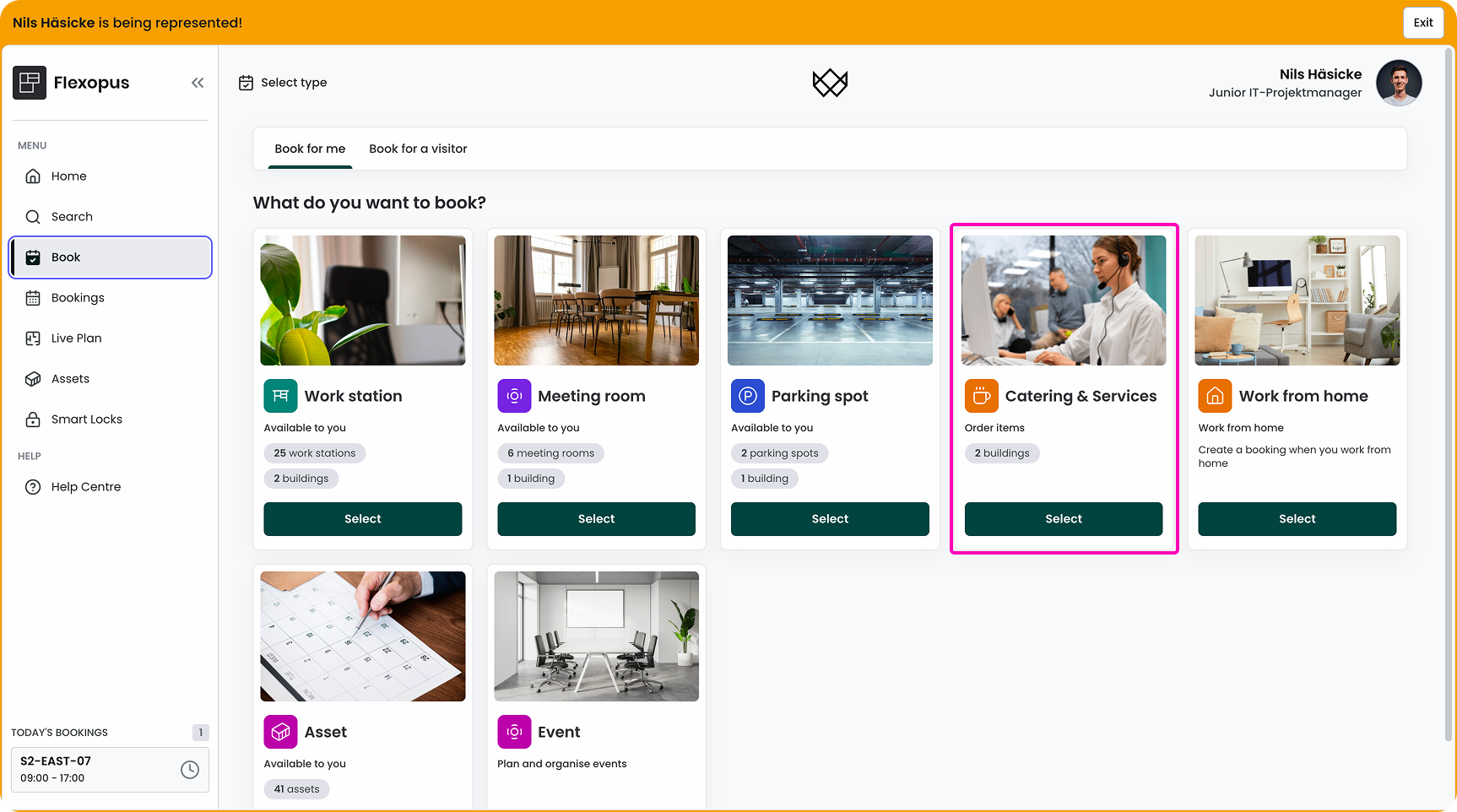
STEP 2/b - Order event catering
You can also attach a room booking for the delegated user's room bookings. You can create the room booking (event option)
- In Flexopus, if it's enabled by the administrators or;
- You can create the event in the user's Outlook calendar if you have access to it. The event will pop up in Flexopus through the Exchange synchronization.
Once the event is created, you can manage the catering orders of the event. Only the events with a valid room booking will be listed here:
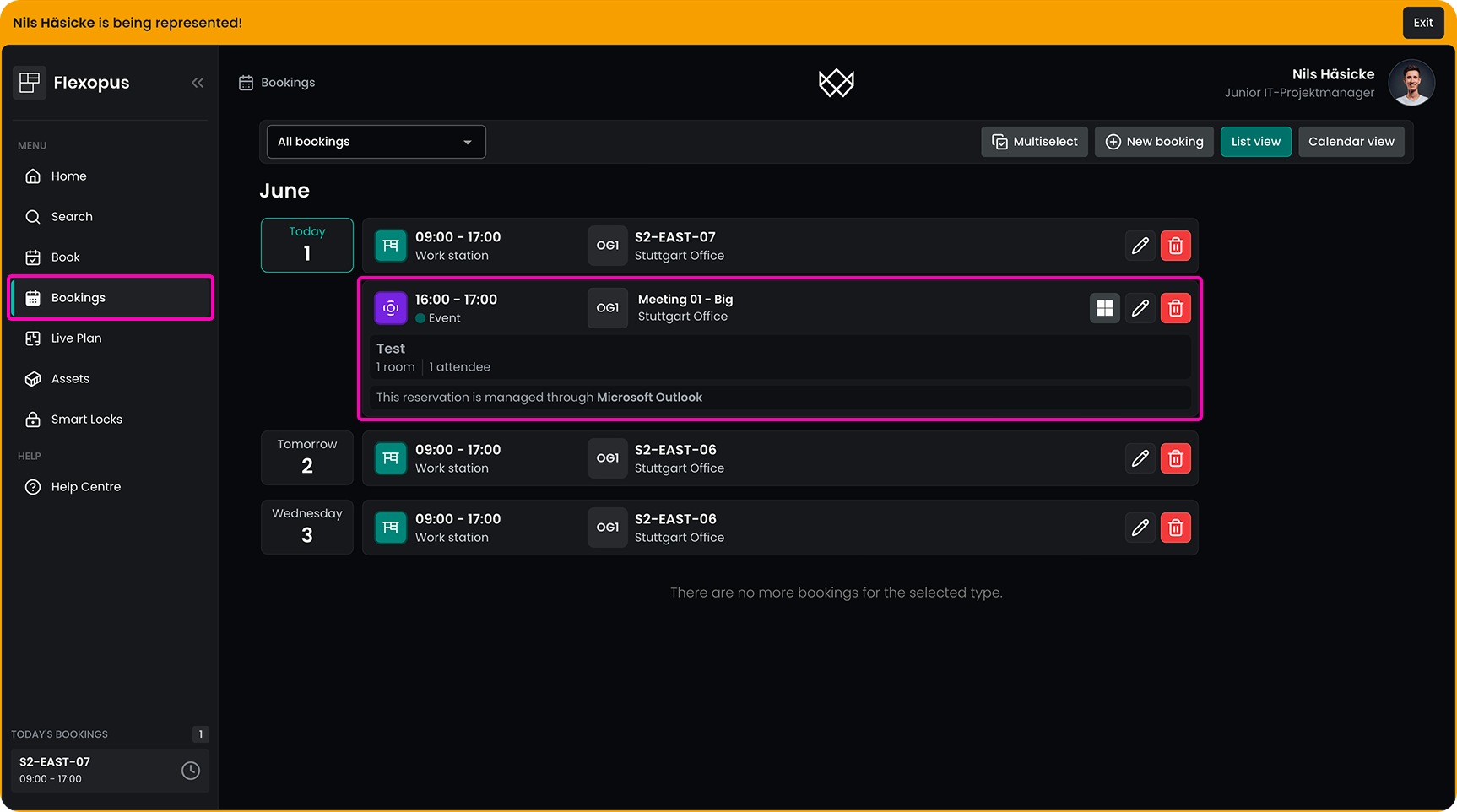
Open the event by clicking on it. You cannot edit the event details, but you can manage the service orders of the event. The event may contain multiple room reservations. Select the room you want to use for the service order:
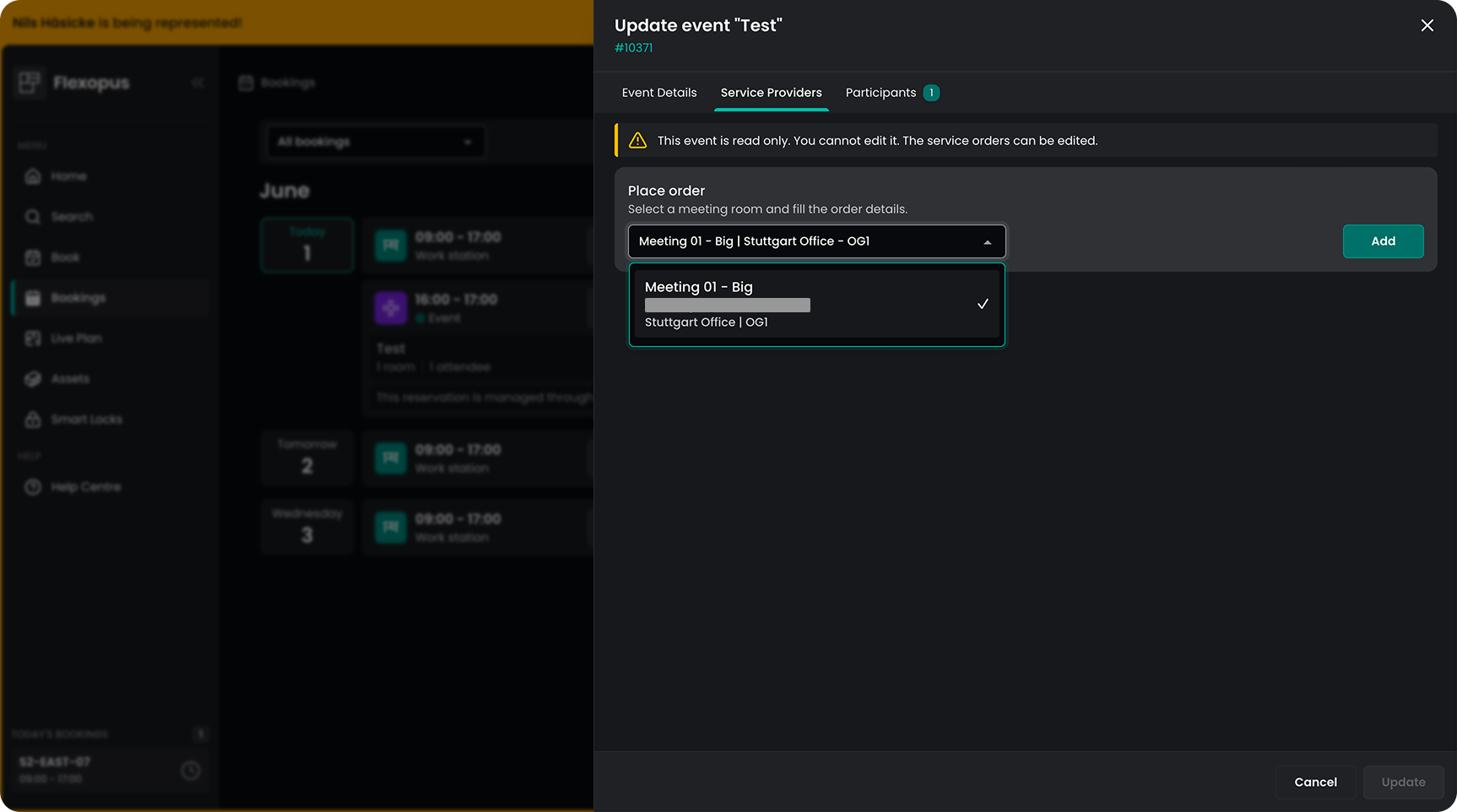
After this you can select the service provider and create the service order.
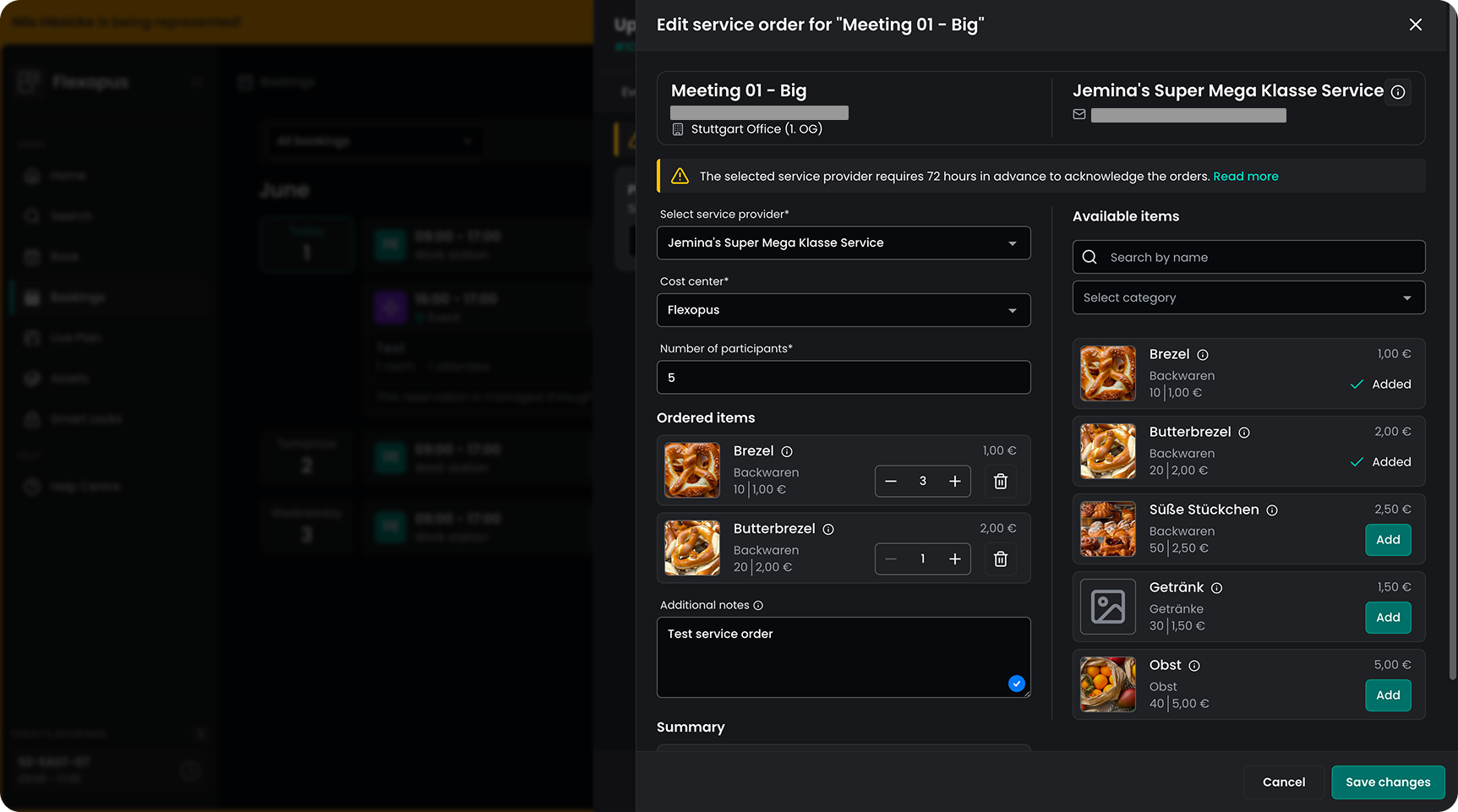
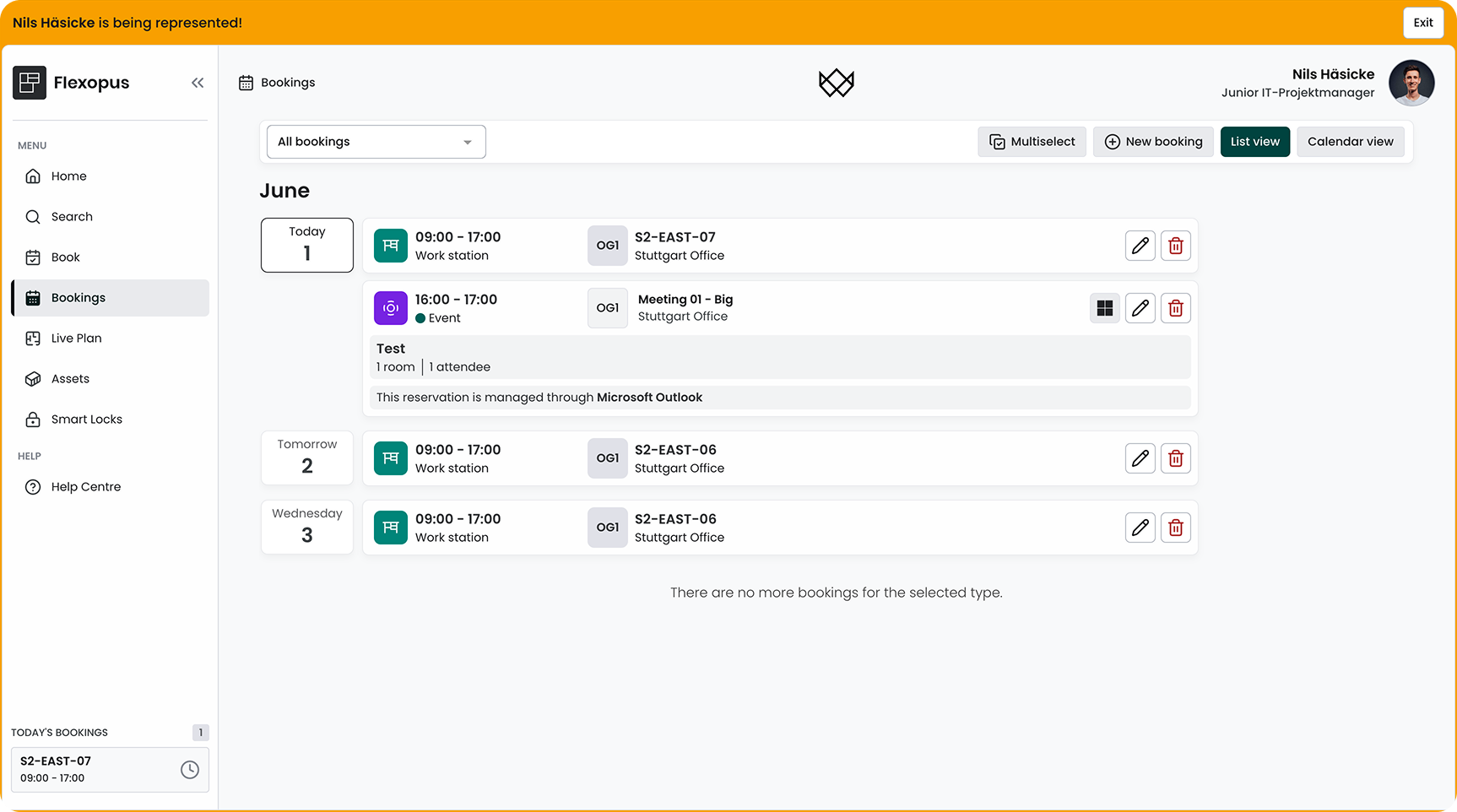
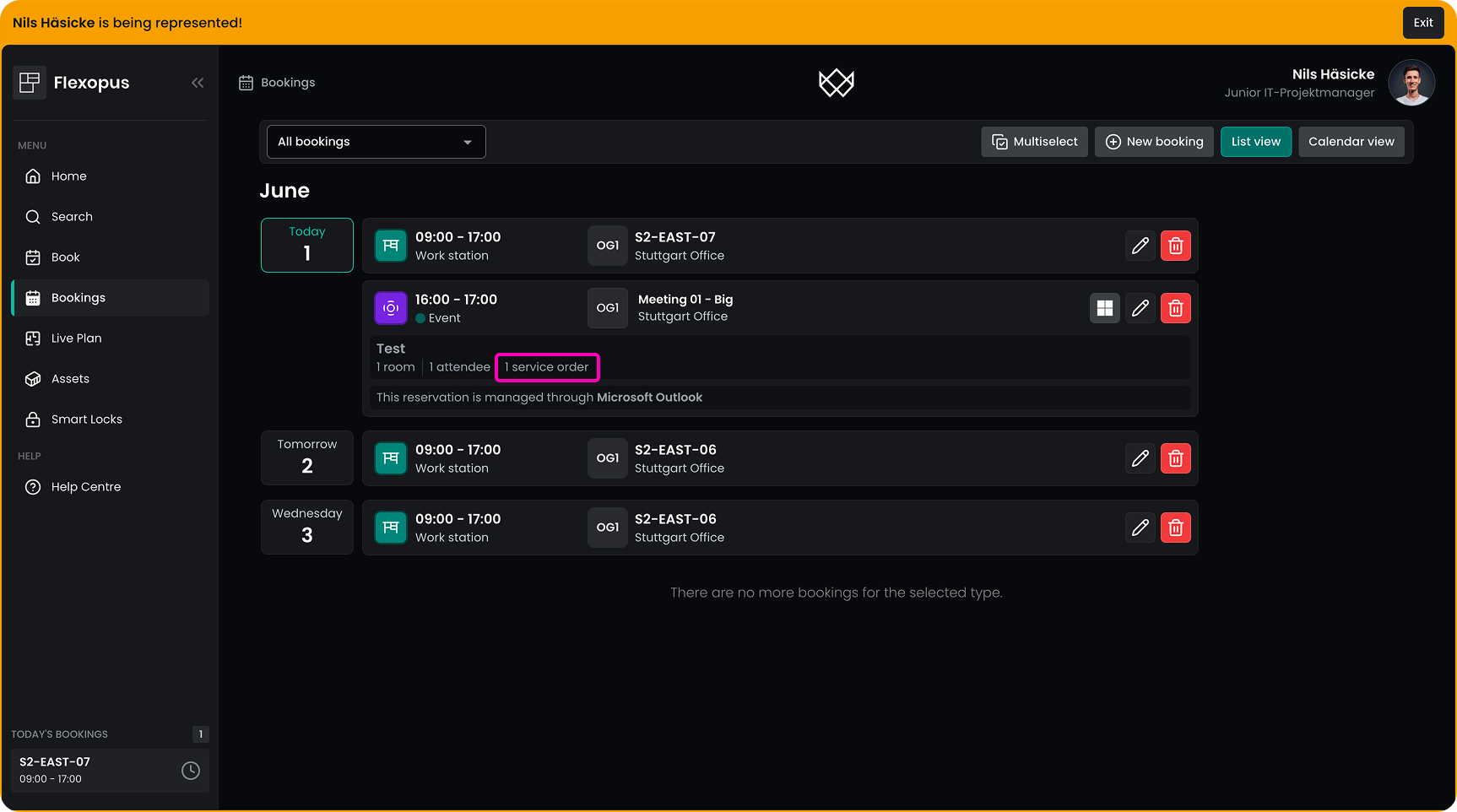
Once the service order is created, you can see it in the booking list:
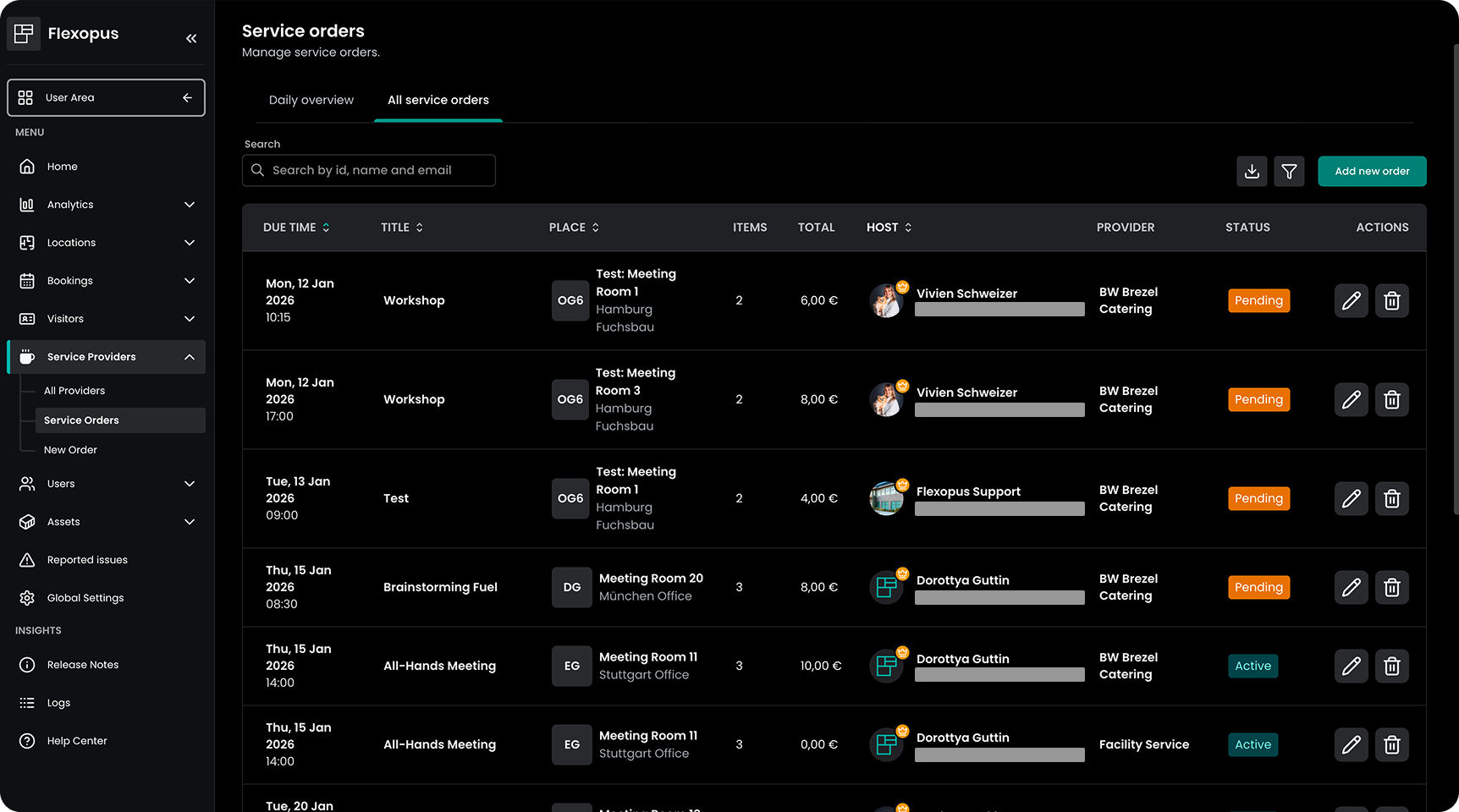
Multiple delegated users
If you manage multiple delegated users, then switching between their profiles through Flexopus may become uncomfortable. You can try to request a catering service admin role in Flexopus from your Flexopus administrator. This way you can see all catering service orders in Flexopus in the admin area, which could be a bit more convenient to manage the orders. This way you can see all service orders, including the orders of the other colleagues.