Special Roles & Responsibilities
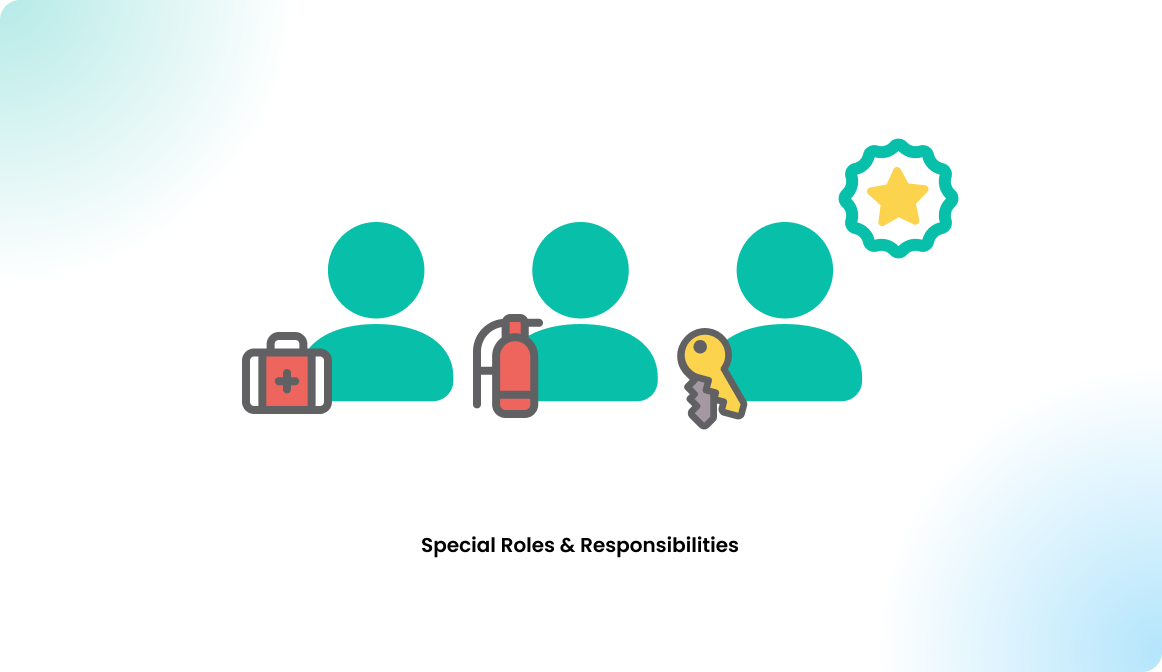
In Flexopus, you can highlight special roles such as first aiders, fire wardens, or other key contacts. This helps employees quickly find the right person in case of an emergency or an important issue.
There are two main ways to manage and display these roles in Flexopus:
- User groups
- Tags
Option 1: Use user groups
You can create dedicated user groups for specific roles, such as First aiders or Fire wardens. Simply add all users with this role to the corresponding group.
The following article explains how to create and manage user groups in Flexopus:
 Daniel Fafula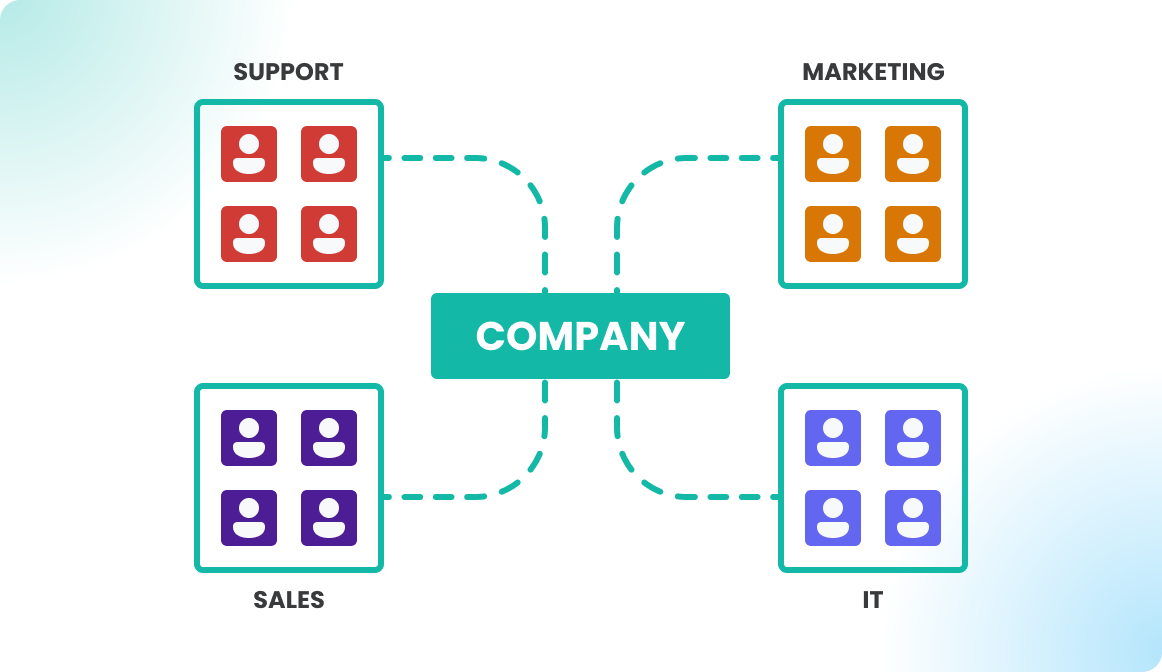
Please make sure that these groups are marked as public. By default, newly created user groups are hidden from other users.
To change this setting:
- Open the relevant user group.
- Navigate to
Group settings. - Disable the setting
Hide group from users.
Once the group is visible, users can filter for it in the Presence list. This allows them to see which colleagues with a specific role are currently present and where they are seated.
More information about the Presence list can be found here:
 Daniel Fafula
Users can also search directly for a public group. This allows them to view all users assigned to that group, check when and where these people are present, and access their profiles, for example to contact them directly.
Option 2: Use profile tags
Additionally, or as an alternative, you can use profile tags to highlight special roles, skills, or responsibilities.

Profile tags can either be managed by the users themselves or by an administrator. Admins can add or edit tags by opening the user profile in the admin area.
Users can search for profile tags using the global search. However, please note that it is not possible to filter by profile tags in the Presence list.
Which option should you use?
The best option depends on your internal setup.
Use user groups if employees should be able to filter for a specific role in the Presence list, for example to quickly find currently present first aiders or fire wardens.
Use profile tags if you want to display additional skills, responsibilities, or information on a user profile and make them searchable via the global search.
You can also combine both options if needed.